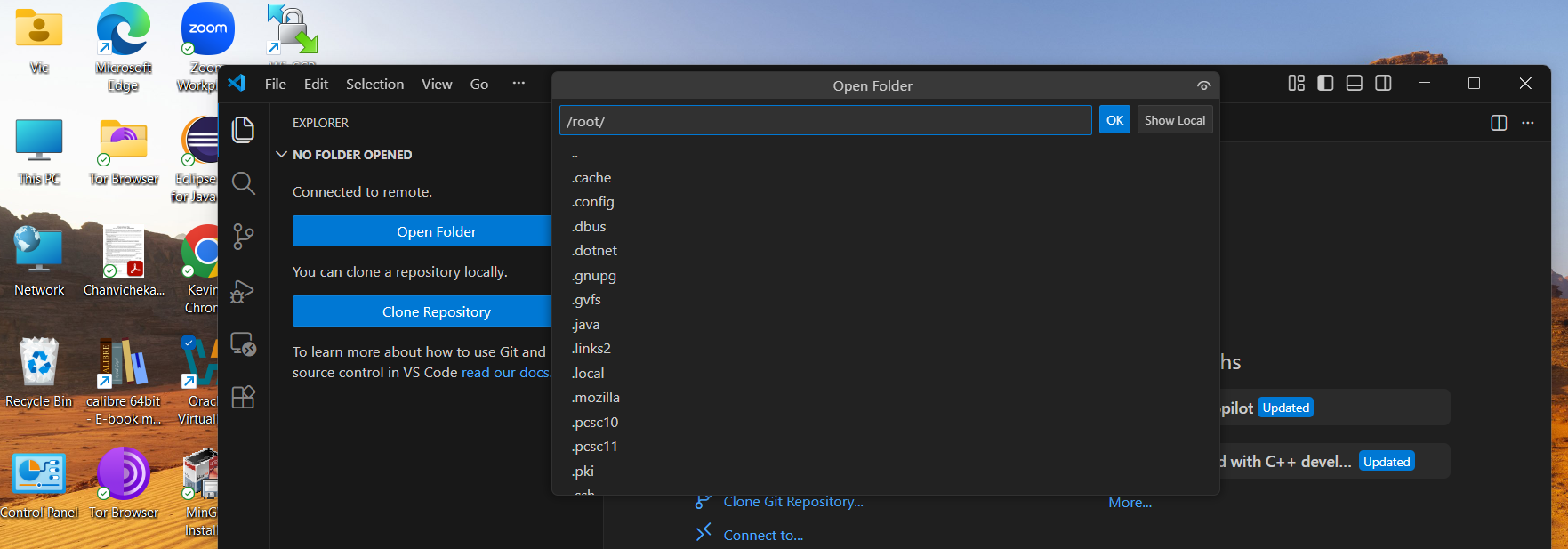
Remote SSH in VS Code is one of the cleanest ways to work on a remote Linux machine as if the files were local.
🛠️ What VS Code Remote SSH actually does
It installs a lightweight VS Code server on the remote machine over SSH. Your editor runs locally, but all:
- files
- terminals
- extensions (server‑side ones)
- debugging
run on the remote host.
🚀 How to set it up
1. Install the extension
Open VS Code → Extensions → search “Remote – SSH” → install.
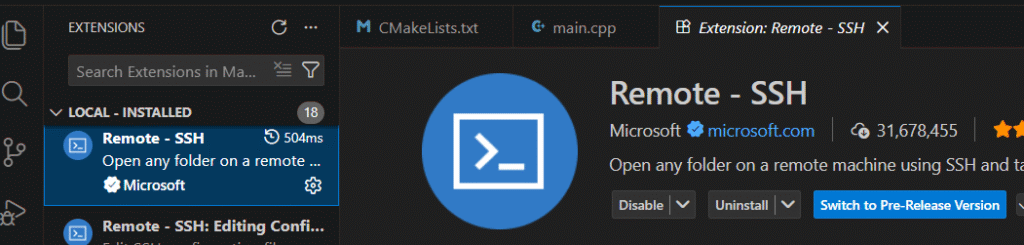
2. Ensure you can SSH normally
From your terminal, confirm:
test below at command prompt:
ssh username@hostname
If this doesn’t work, VS Code won’t connect either.
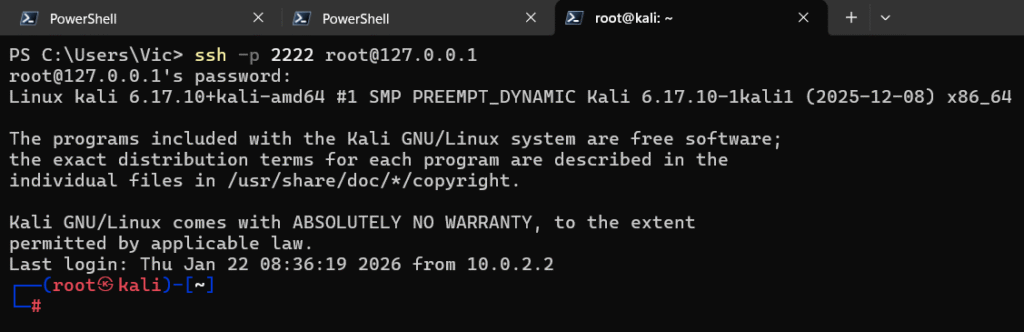
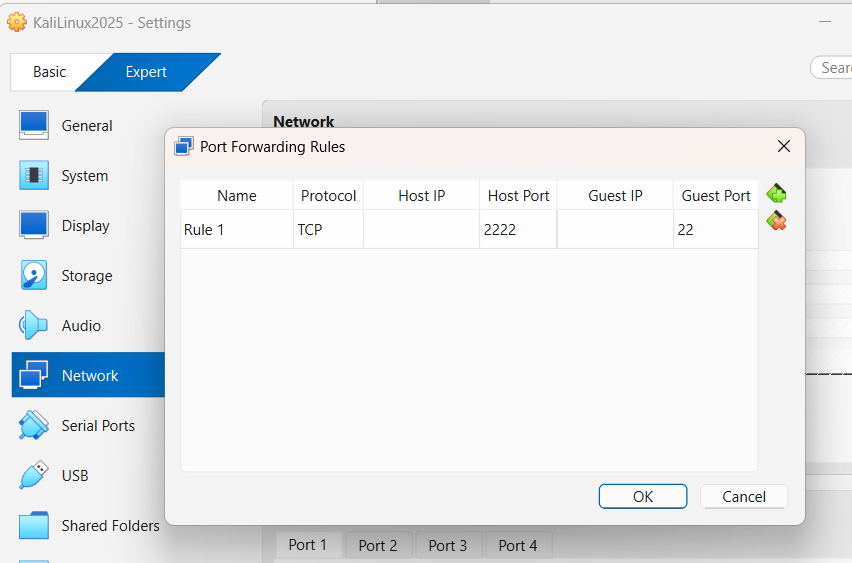
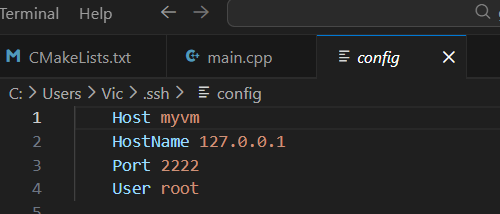
Note: if you use NAT in your VM, you would have to create a port forward 2222 from the host to 22 in the guest/remote VM
you should connect using your host instead e.g ssh -p port username@127.0.0.0
3. Add your host in VS Code
Open the Command Palette:
press:
Ctrl + Shift + P → “Remote-SSH: Add New SSH Host”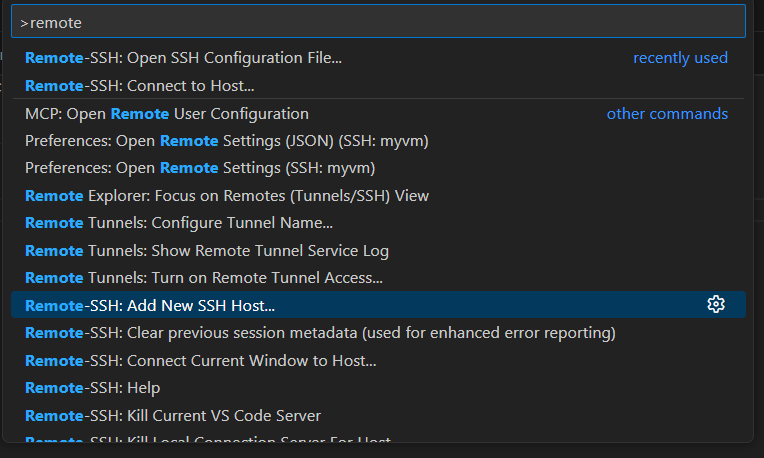
e.g here my VM is using NAT so I have to use port forwarding to be able to remote connect ssh to it and I like to use root to remote connect as it is my local VM so no security concern here.
4. Connect
Ctrl + Shift + P → “Remote-SSH: Connect to Host…”



Enter the password of my root user and hit Enter and now I am using VScode from my windows host to remote develop on my VM.