Mocking Unit Test with Catch2 regarding Pub/Sub client and message broker (nats-server) using protobuf cross-platform data format

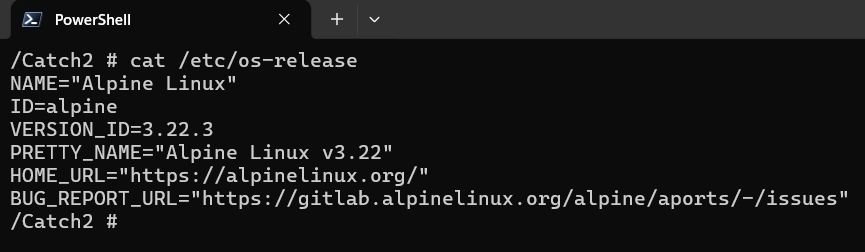
I have wrote them and posted to my GitHub repos from the official Alpine docker image

testing_nats_msg_broker_pub_sub_client_with_protobuf_alpine/README.md at main · chanvichekaouk/testing_nats_msg_broker_pub_sub_client_with_protobuf_alpine

🧪 Mock Publisher–Broker–Subscriber Unit Test (Catch2 v3 + Protobuf + Alpine) This project demonstrates a mock unit‑test workflow between:

a Publisher client

a NATS message broker

a Subscriber client

using a cross‑platform Protobuf data format, tested with the Catch2 v3 framework and built on the official Alpine Linux image.

The goal is to validate message flow, multi‑subscriber behavior, and protobuf serialization/deserialization in a lightweight, reproducible environment.

🛠️ Compiling Tests Manually (g++) You can compile the test suite directly from the terminal:

g++ -Iinclude tests/*.cpp -o test_runners \
    -I/usr/local/include -L/usr/local/lib \
    -lCatch2Main -lCatch2

Run all tests under a tag:

./test_runners "[tag]"

Run only a specific section under a tag:

./test_runners "[tag]" -c "section_name"

Example:

Run all sections under the tag:

./test_runners "[multi_sub_receive_msg]"

Run only a specific section:

./test_runners "[multi_sub_receive_msg]" -c "Client connects successfully"

Another example:

./test_runners "[multi_sub_receive_msg]" -c "Multiple subscribers receive the same published message"

Screenshots 

image

📦Using Protobuf Data Format

Example .proto schema:

syntax = "proto3";

message Telemetry {
    int32 id = 1;
    int32 temp = 2;
}

🐧 Alpine vs glibc: Why Linking Protobuf Is Harder on Alpine On most Linux distributions that use glibc, linking Protobuf with Abseil is simple. But Alpine uses musl, and Abseil depends on glibc‑specific internals such as futex.

Because musl does not provide these interfaces, Alpine maintainers must:

  • patch Abseil heavily
  • disable unsupported features
  • split Abseil into ~130 micro‑libraries

Starting with Protobuf 4.x, Abseil became a mandatory dependency, which makes linking more complex on Alpine.

On glibc‑based systems (Ubuntu, Debian, Fedora) You can link with just a few Abseil libraries:

-labsl -labsl_strings -labsl_log

On Alpine (musl) You must explicitly link the micro‑libraries required by your generated Protobuf code:

-lprotobuf -lprotobuf-lite
-labsl_base -labsl_strings
-labsl_raw_logging_internal
-labsl_log_internal_check_op
-labsl_log_internal_message
-labsl_log_internal_nullguard

Example:

g++ -Iinclude -Iproto \
proto/*.cc tests/*.cpp \
-o test_runners \
-lprotobuf -lprotobuf-lite \
-labsl_base -labsl_strings \
-labsl_raw_logging_internal \
-labsl_log_internal_check_op \
-labsl_log_internal_message \
-labsl_log_internal_nullguard \
-lCatch2Main -lCatch2
image

Getting Catch2 v3 to work in alpine docker image

I have tried it today and so far Catch2 v2 works either using package installer or through dropping its header file or compiling its library from its github source code.

But for Catch2 v3, it also works but to compile our binary, we have to either use library Catch2Main to autogenerate main or create our own main code because alpine with Catch2 v3 does not work with auto-generation of main using #define CATCH_CONFIG_MAIN flag

test_main.cpp (alpine with catch2 does not work with this kind of auto-generated main flag)

#define CATCH_CONFIG_MAIN
#include <catch2/catch_all.hpp>

main.cpp (works since we defined our own main)

#include <catch2/catch_session.hpp>

int main(int argc, char* argv[]) {
Catch::Session session;
return session.run(argc, argv);
}

Or also work with Library mode with Catch2main to auto generate main

✅ this works since we use Catch2Main library

g++ test_math.cpp -o test -I/usr/local/include -L/usr/local/lib -lCatch2Main -lCatch2 
❌ this does not work as I have verified that #define CATCH_CONFIG_MAIN flag is not working

g++ test_main.cpp test_math.cpp -o test -I/usr/local/include

✅this works since we wrote our own main

g++ main.cpp test_math.cpp -o test -I/usr/local/include -lCatch2

Resize existing VirtualBox HD

This must be done while the VM is powered off.

Caution: it won’t work if your VM has a snapshot. You either have to restore your snapshot then resize or delete your existing snapshot(s) or clone the disk and resize and attached the resize to the current state. Also be careful with it as there is no shrinking support so in case you accidentally resize it virutally to sth much larger than your host hdd then there won’t be easy to revert it (unless you have a snapshot but restoring snapshot you will loss your current state)

PHASE 1 — VirtualBox layer

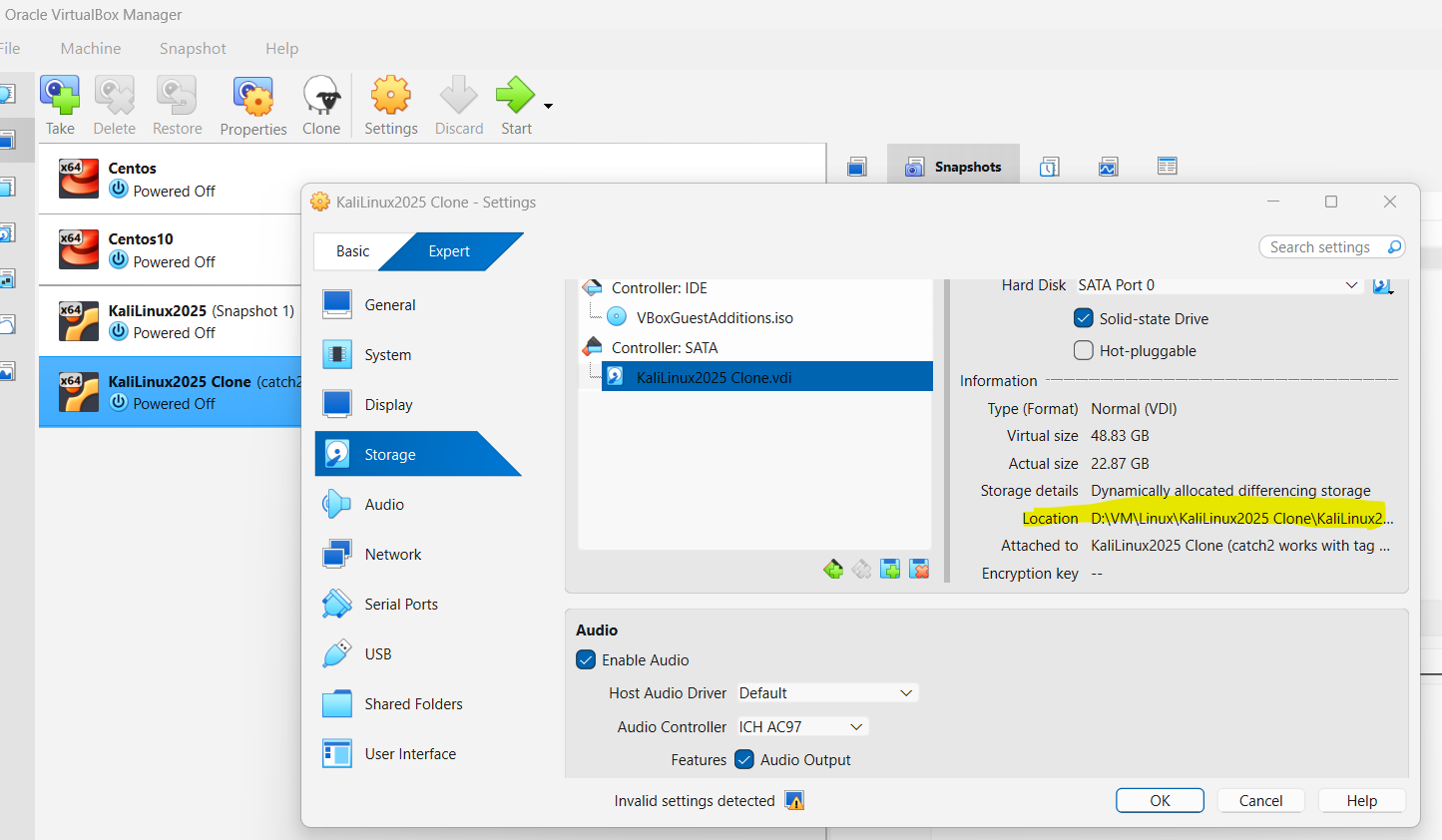
Find the disk path

In VirtualBox Manager:

  • Select your VM
  • Settings → Storage
  • Click the disk → look at the Location field

Step 1: copy the location of hd you wish to resize

e.g mine is D:\VM\Linux\KaliLinux2025 Clone\KaliLinux2025 Clone.vdi

Step 2: Then go to directory where you installed your virtualbox to

e.g mine is C:\Program Files\Oracle\VirtualBox

3. At command prompt, execute as seen here where I wish to resize mine to 50GB

.\VBoxManage.exe modifyhd "D:\VM\Linux\KaliLinux2025 Clone\KaliLinux2025 Clone.vdi" --resize 50000

You should see something like this:

0%…10%…20%…30%…40%…50%…60%…70%…80%…90%…100%

This enlarges the virtual disk container, but not the partitions inside it.

PHASE 2 — Partition table layer

After resizing the VDI, the guest OS sees a bigger disk, but the partitions still end at the old size.

Step 4: Resize the partitions

For your Kali VM (MBR layout):

  • sda2 = extended partition
  • sda5 = logical LVM partition

You must expand both.

Inside parted:

sudo parted /dev/sda
(parted) resizepart 2 100%
(parted) resizepart 5 100%
(parted) quit

Now the partition table matches the new disk size.

PHASE 3 — LVM layer

Step 5: Resize the physical volume (PV)

sudo pvresize /dev/sda5

This tells LVM: “The partition is bigger now — use the new space.”

Step 6: Resize the logical volume (LV)

sudo lvextend -l +100%FREE /dev/mapper/kali--vg-root

This expands the LV to fill all free space in the VG.

PHASE 4 — Filesystem layer

Step 7: Resize the filesystem

For ext4:


sudo resize2fs /dev/mapper/kali--vg-root

This expands the filesystem to fill the LV.

FINAL CHECK

df -h /

C++ interface (pure abstract class) && C# interface

1- C# Interface

public interface IShape
{
double Area();
double Perimeter();
}

2- C# Implementation (Rectangle)

public class Rectangle : IShape
{
private readonly double width;
private readonly double height;

public Rectangle(double width, double height)
{
this.width = width;
this.height = height;
}

public double Area() => width * height;

public double Perimeter() => 2 * (width + height);
}

3- Using the C# interface

IShape shape = new Rectangle(3.0, 4.0);
Console.WriteLine($"Area: {shape.Area()}");
Console.WriteLine($"Perimeter: {shape.Perimeter()}");

A- C++ Interface (pure abstract class)

class IShape {
public:
virtual ~IShape() = default;
virtual double area() const = 0;
virtual double perimeter() const = 0;
};

B- C++ Implementation of the Interface

class Rectangle : public IShape {
public:
Rectangle(double width, double height)
: w_(width), h_(height) {}

double area() const override {
return w_ * h_;
}

double perimeter() const override {
return 2 * (w_ + h_);
}

private:
double w_;
double h_;
};

C- Using the Interface in C++

#include <iostream>
#include <memory>

int main() {
std::unique_ptr<IShape> shape = std::make_unique<Rectangle>(3.0, 4.0);

std::cout << "Area: " << shape->area() << "\n";
std::cout << "Perimeter: " << shape->perimeter() << "\n";
}

Configure GitHub in your Linux system using public\private ssh keys instead of username/password

🟩 Step 1 — Generate your SSH key pair (public key .pub and private key) at ~/.ssh/

ssh-keygen -t ed25519 -C "your_email@example.com"

🟩 Step 2 — Start the SSH agent

eval "$(ssh-agent -s)"

You should see something like:

Agent pid 1234

🟩 Step 3 — Copy your pub key to GitHub

cat ~/.ssh/id_ed25519.pub

copy the conent of your .pub key to GitHub

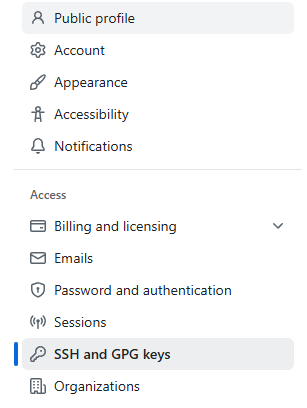
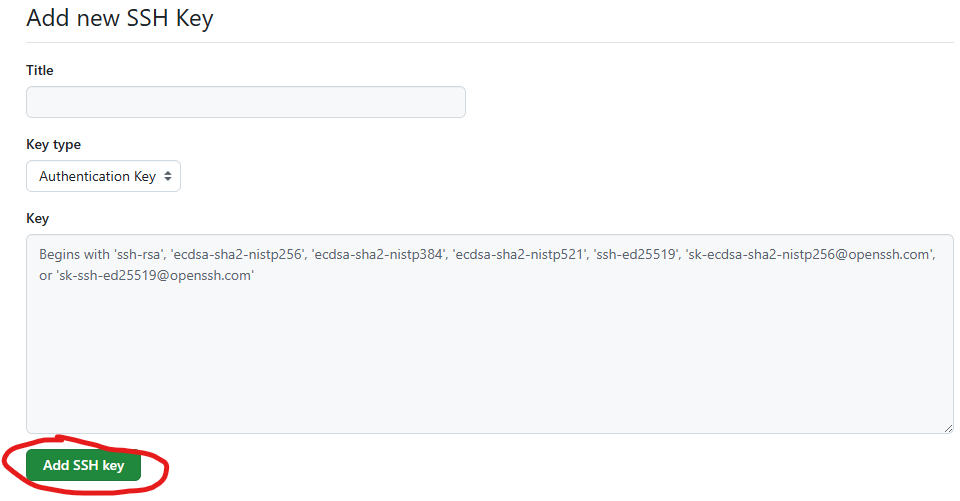
Go to your github profile ➤ Settings ➤ SSH and GPG kyes ➤ New SSH key

Paste the content of your pub key in text box above under the word “Key” and give it a name in textbox above under the word “Title”

🟩 Step 4 — tell SSH client which private key to use which is paired to the pub key used at GitHub earlier

e.g under current’s user .ssh folder

mkdir -p ~/.ssh
chmod 700 ~/.ssh
nano ~/.ssh/config

Add:

Host *
AddKeysToAgent yes
IdentityFile ~/.ssh/id_ed25519

ctrl-o to write and ctrl-x to close nano.

Then secure it:

chmod 600 ~/.ssh/config

🟩 Step 5 – testing it

ssh -T git@github.com

you should see sth like this:

Hi github_username! You've successfully authenticated, but GitHub does not provide shell access.

Linux Tree command

tree -f -I build

where -f is to include file with full path. -I mean to exclude specific folder

I do like this util tool in Linux though it does not always come with the distro and I have to install it.

e.g: sample output from my kali linux VM:

┌──(root㉿kali)-[/home/catch2-mini-book/project]
└─# tree -f -I build
.
├── ./CMakeLists.txt
├── ./external
│   ├── ./external/catch_amalgamated.cpp
│   └── ./external/catch_amalgamated.hpp
├── ./id_git_hub_chanvicheka_ouk
├── ./id_git_hub_chanvicheka_ouk.pub
├── ./include
│   ├── ./include/account.hpp
│   ├── ./include/logger.hpp
│   ├── ./include/logic.hpp
│   ├── ./include/service.hpp
│   └── ./include/shape.hpp
├── ./README.md
├── ./src
│   └── ./src/logic.cpp
├── ./test_example
├── ./test_main.o
├── ./test_runner
└── ./tests
├── ./tests/test_example.cpp
├── ./tests/test_main.cpp
├── ./tests/test_oop_composition_class_with_dependencies.cpp
├── ./tests/test_oop_inheritance_polymorphism.cpp
├── ./tests/test_oop_simple.cpp
├── ./tests/test_oop_using_fixture.cpp
└── ./tests/test_parameterization.cpp

5 directories, 22 files

git pull –no-rebase (default) vs git pull –rebase

🟩 git pull --rebase

This is the modern, clean, recommended workflow for most developers.

What it does

  • Fetches the latest remote commits
  • Replays your local commits on top of the updated branch
  • Produces a linear, easy‑to‑read history
  • Avoids unnecessary merge commits

Visual example

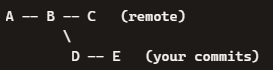
Before rebase:

After:

Your commits are rewritten to sit on top.

When to use it

  • Solo development
  • Feature branches
  • Clean, audit‑friendly history
  • Government‑grade or enterprise workflows
  • When you want to avoid messy merge commits

Why pros prefer it

  • History stays linear
  • git log is readable
  • CI/CD pipelines behave more predictably
  • Easier code reviews
🟦 git pull --no-rebase (default merge behavior)

This performs a merge instead of a rebase.

What it does

  • Fetches remote commits
  • Creates a merge commit combining remote + local work

Visual example

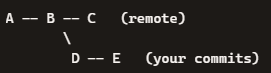
Before:

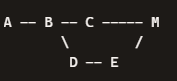
After:

Where M is a merge commit between C head from remote and E head from your commit so M was a merged result of C & D, E.

When to use it

  • Shared branches with many contributors
  • When rewriting history is not allowed
  • When you want to preserve the exact order of events
  • When your team explicitly requires merge commits

Downsides

  • History becomes noisy
  • Merge commits pile up
  • Harder to read
  • Harder to bisect

How to check if your local git is default –no-rebase or configured to –rebase

git config list

user.name= my name
user.email=my.name@gmail.com
pull.rebase=true
core.repositoryformatversion=0
core.filemode=true
core.bare=false
core.logallrefupdates=true
remote.origin.url=git@github.com:chanvichekaouk/catch2-hpp-unit-test.git
remote.origin.fetch=+refs/heads/:refs/remotes/origin/
branch.main.remote=origin
branch.main.merge=refs/heads/main
branch.main.vscode-merge-base=origin/main

or retreive value of specific config:

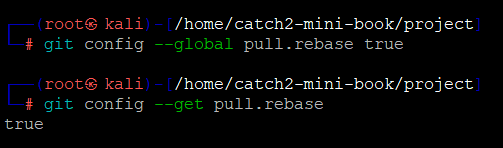
git config --get pull.rebase

if it shows true then yes it is configured to –rebase.

show empty or false then yes it is default to –no-rebase

How to set it to –rebase by default

For all repositories:

git config --global pull.rebase true

For just this repo:

git config pull.rebase true

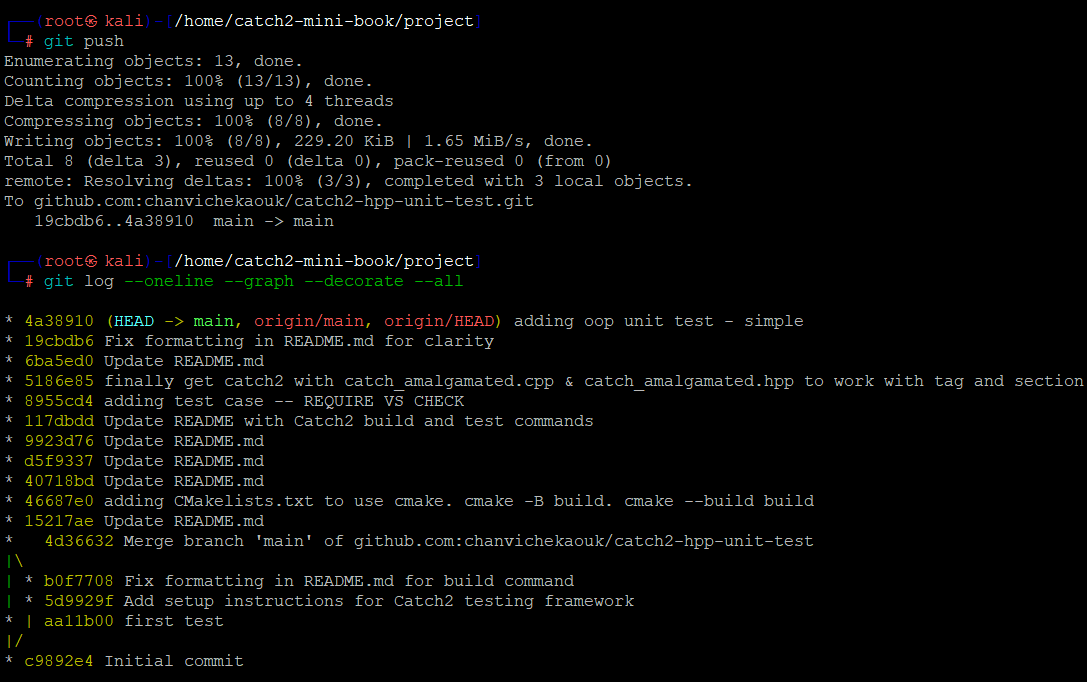
e.g here initially my local git is set to default –no-rebase so you can see the deviation of the line as it is a merge btw remote head and my local commit since then I have configured global to –rebase so my history log will be a linear line which as pointed out would be easy to read.

git log --oneline --graph --decorate --all

(From my local personal laptop & git hub repo: chanvichekaouk/catch2-hpp-unit-test)

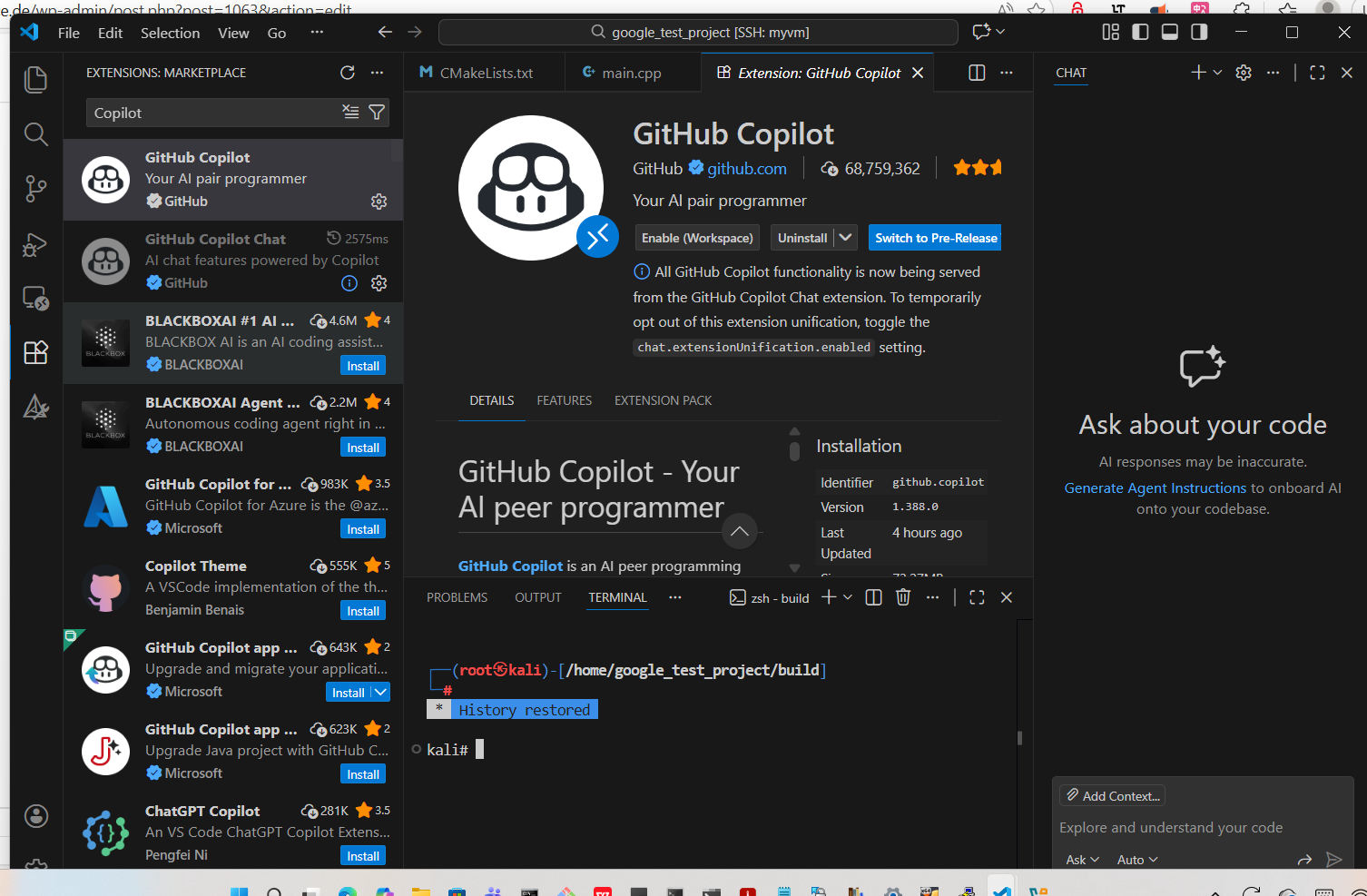
VSCode Remote-SSH

Remote SSH in VS Code is one of the cleanest ways to work on a remote Linux machine as if the files were local.

🛠️ What VS Code Remote SSH actually does

It installs a lightweight VS Code server on the remote machine over SSH. Your editor runs locally, but all:

  • files
  • terminals
  • extensions (server‑side ones)
  • debugging

run on the remote host.

🚀 How to set it up

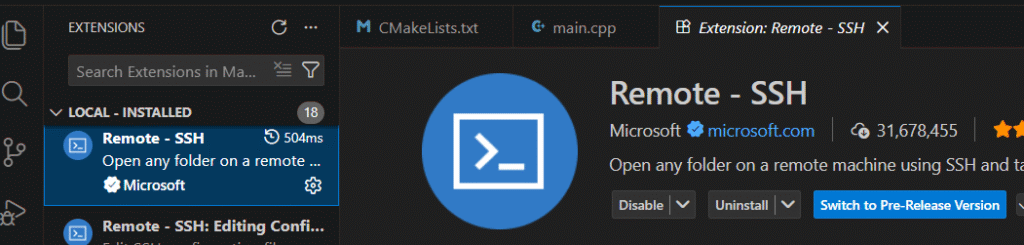
1. Install the extension

Open VS Code → Extensions → search “Remote – SSH” → install.

2. Ensure you can SSH normally

From your terminal, confirm:

test below at command prompt:

ssh username@hostname

If this doesn’t work, VS Code won’t connect either.

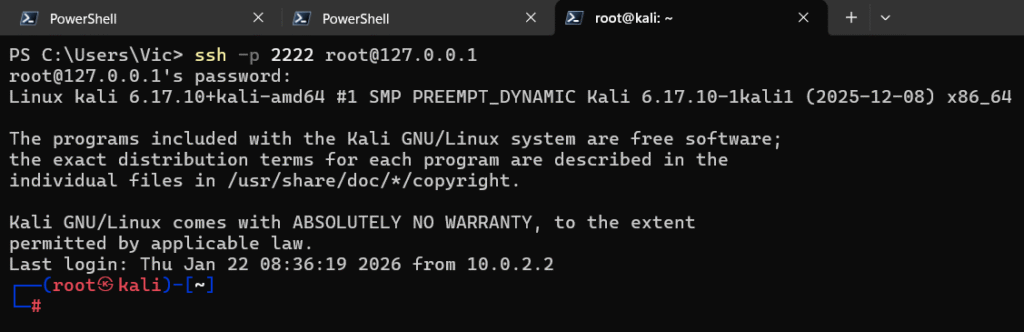
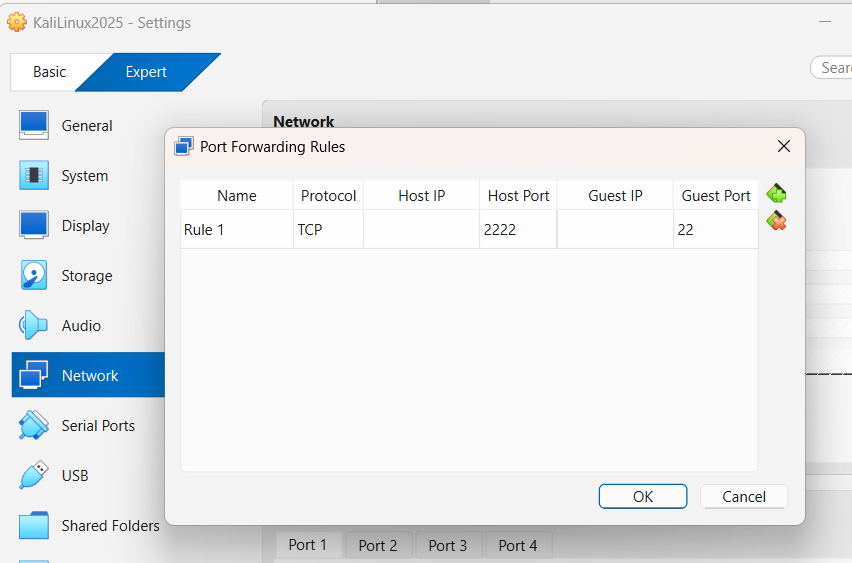
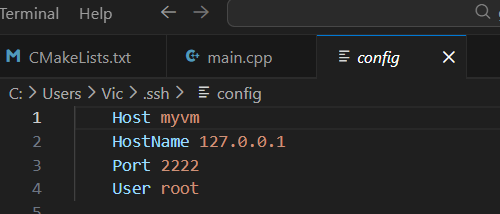
Note: if you use NAT in your VM, you would have to create a port forward 2222 from the host to 22 in the guest/remote VM

you should connect using your host instead e.g ssh -p port username@127.0.0.0

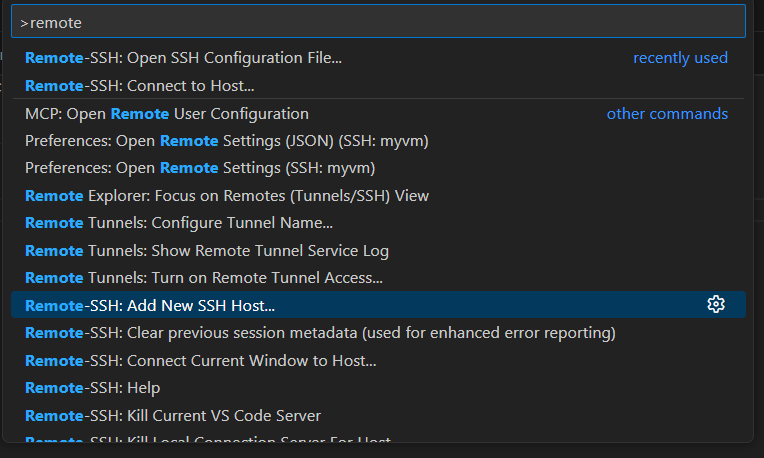
3. Add your host in VS Code

Open the Command Palette:

press:

Ctrl + Shift + P → “Remote-SSH: Add New SSH Host”

e.g here my VM is using NAT so I have to use port forwarding to be able to remote connect ssh to it and I like to use root to remote connect as it is my local VM so no security concern here.

4. Connect

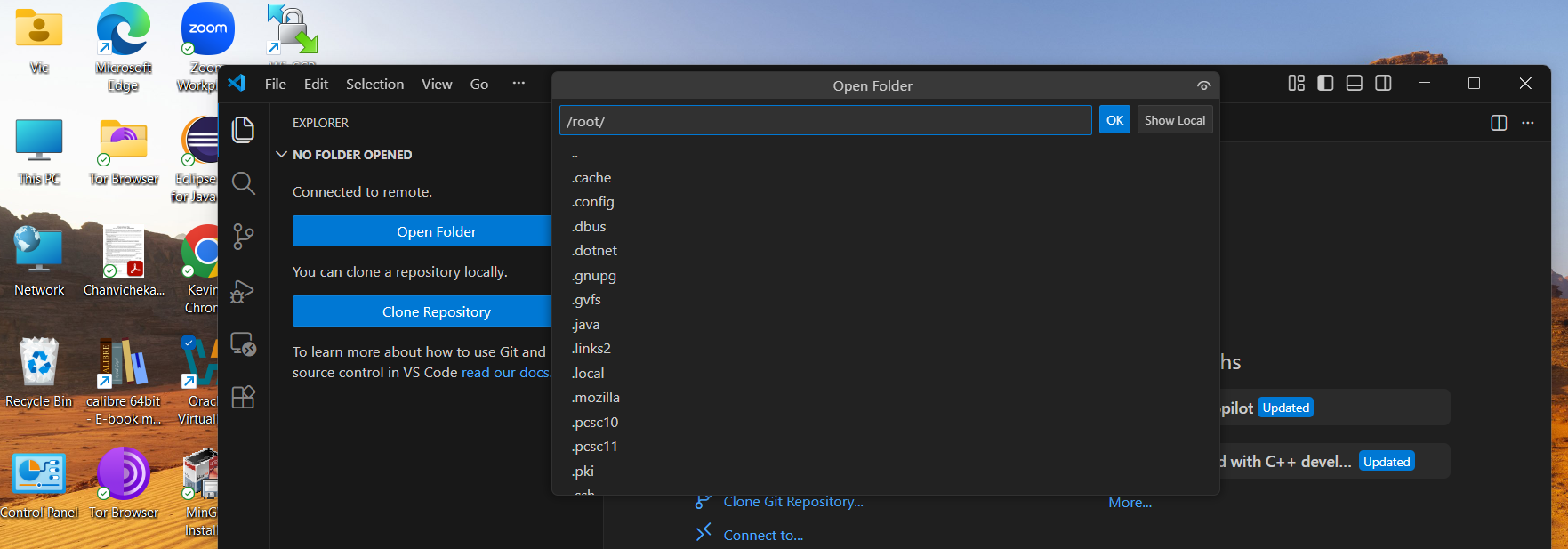
Ctrl + Shift + P → “Remote-SSH: Connect to Host…”

Enter the password of my root user and hit Enter and now I am using VScode from my windows host to remote develop on my VM.

VIM mode :set paste

:set paste is one of those tiny Vim commands that solves a huge headache. Since you’ve been wrestling with copying from Windows into Vim, this is exactly the right tool.

Here’s the clean, practical breakdown.

🧵 What :set paste actually does

It tells Vim:

  • Do NOT auto-indent
  • Do NOT auto-format
  • Do NOT rewrap text
  • Do NOT insert weird characters when pasting

This prevents the classic “pasted text turns into a mess” problem.

🛠 How to use it correctly

1. Before pasting

In normal mode:

type:

:set paste

Then enter insert mode:

type:

i

Now paste using your terminal shortcut (e.g., Ctrl+Shift+V, right‑click → Paste, etc.).

⚡ Faster method: toggle paste mode

If you want a quick toggle key:

Add this to your ~/.vimrc:

type:

set pastetoggle=<F2>

Now pressing F2 instantly switches paste mode on/off.