
First of all, go to Amazon AWS and create our free AWS account and saved its private key.
Once we login to our aws console, we can search ec2 and since I have visited it before here I will just click on EC2
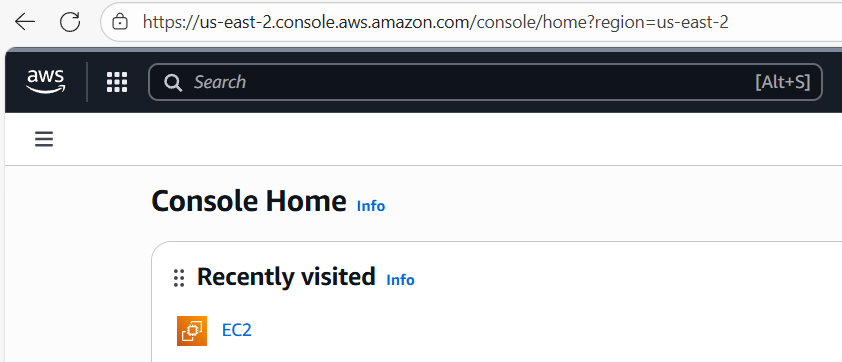
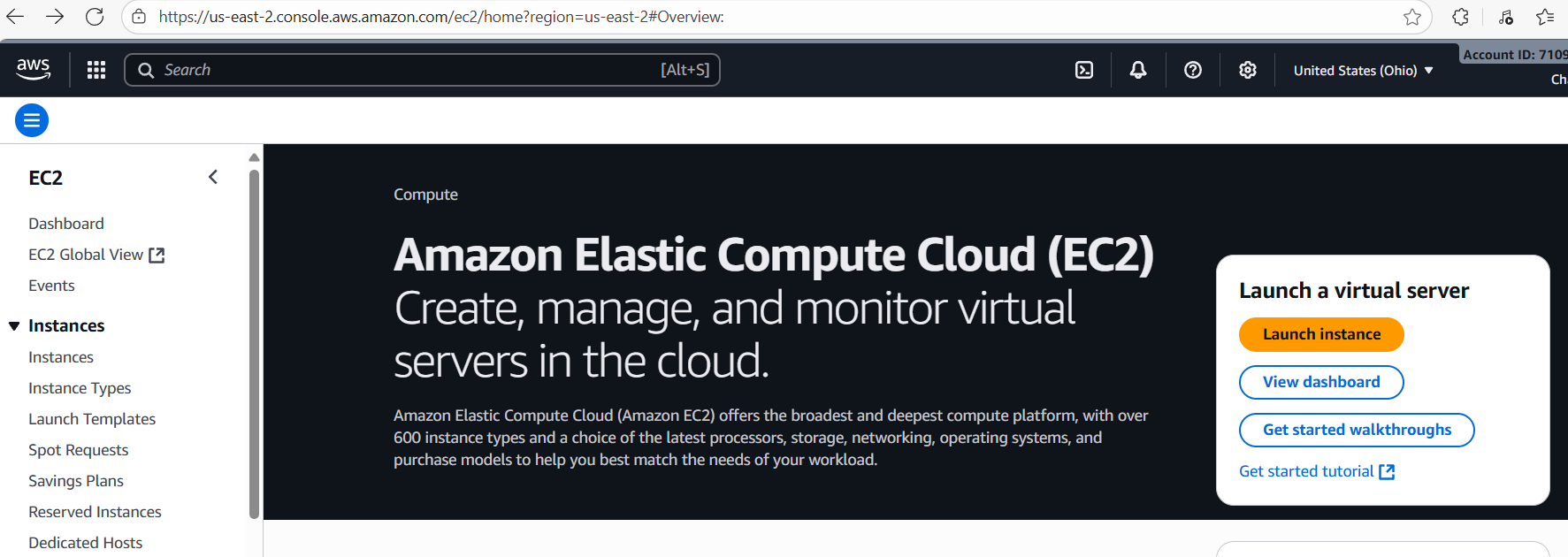
Then click on Launch instance
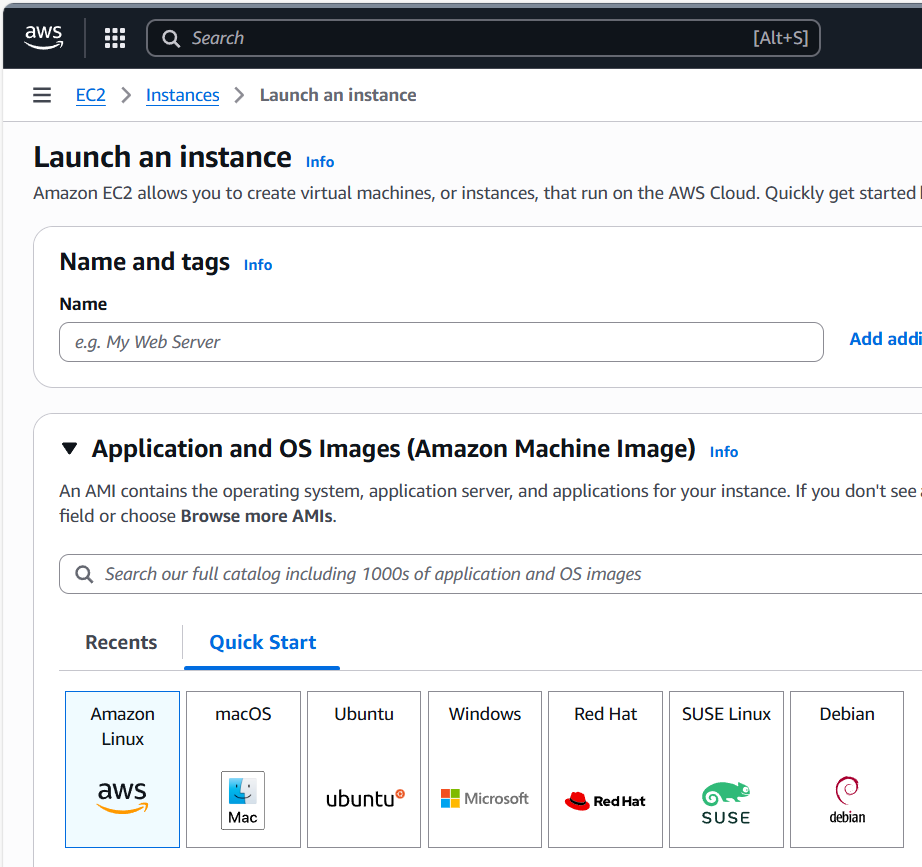
We are going to use Amazon Linux
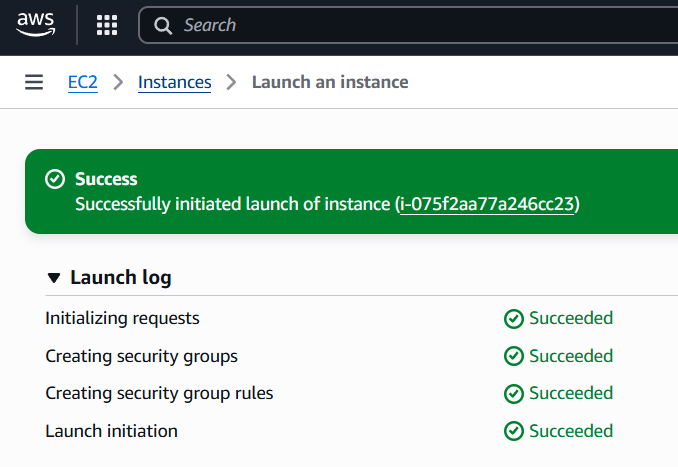
Ok it launched successfully. Then click on its instance name guid as seen above “i-075f2…”
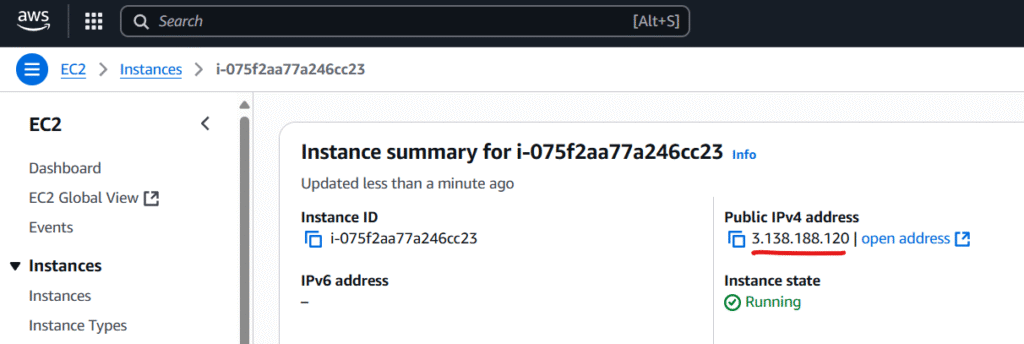
Note down the ip address since we are going to connect to it using our saved private key. we will use our private key “MyLinux.pem” to connect to it which matched with its public key at Amazon AWS server.
At Command prompt execute:

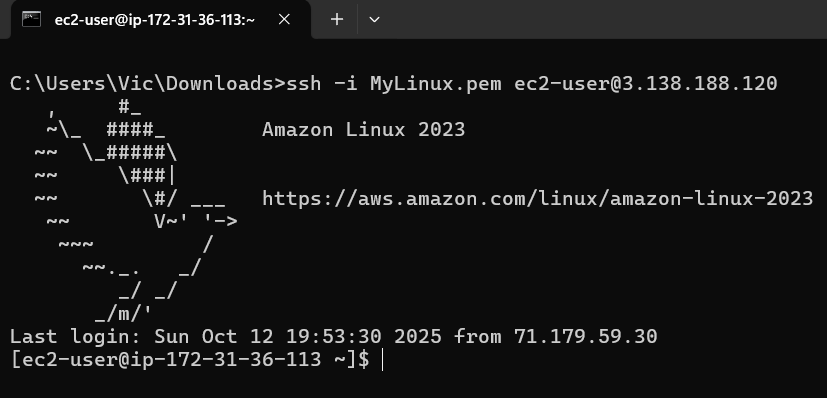
We are now connected with our Amazon AWS EC2 instance.
Note the user name is always ec2-user for amazon linux OS.
I am going to execute Linux update with yum update command:

but we do not have the privilege to do it so we will have to elevate ourself to root with following command sudo -i

We are now root so we should be able to upgrade our Linux to its latest repo with
yum update
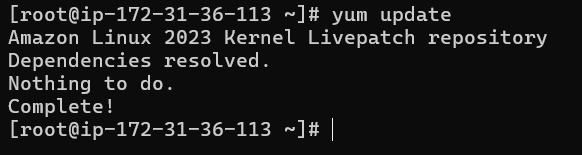
That looks good. our AWS linux instance is update to date with its Kernel repo.
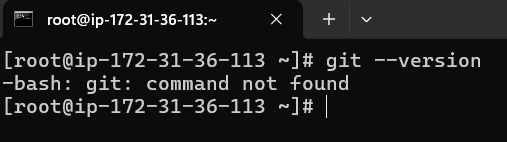
git is not installed yet so we will have to install it with yum install git
yum install git
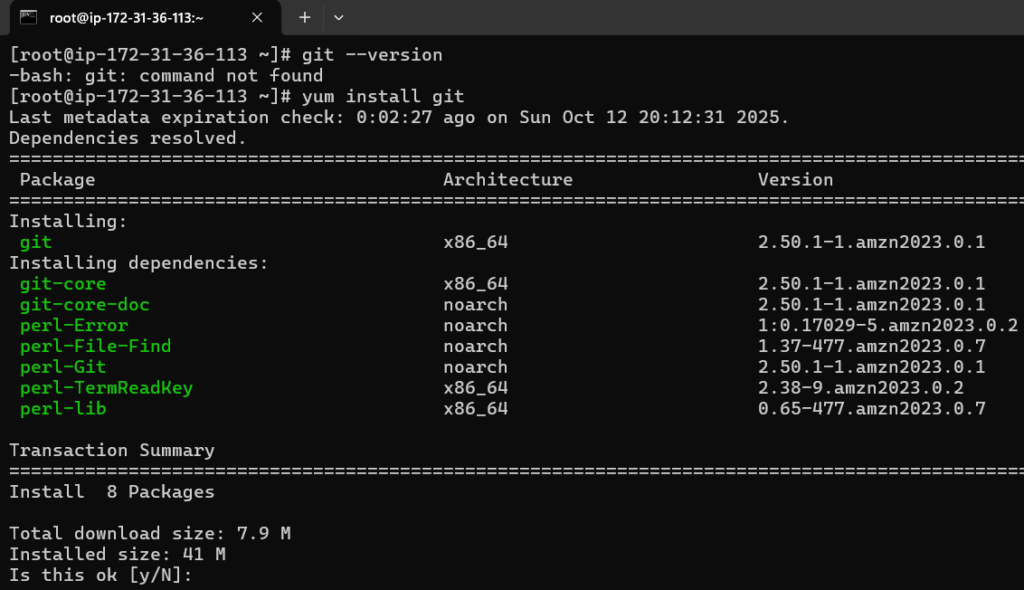
type y to proceed
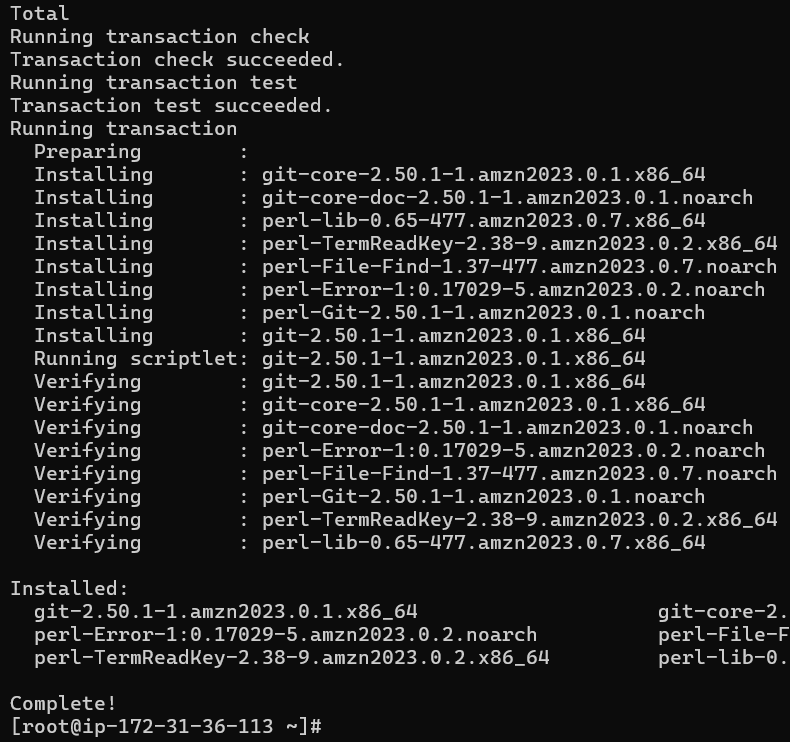
Git install is completed
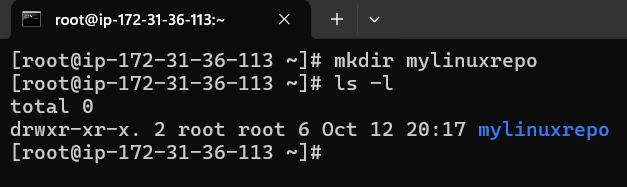
Next we will create a directory called mylinuxrepo

Check if it is created with ls -l
cd to our mylinuxrepo directory and issue git status

it is not a git local repo yet so we will have to convert it to local git reposity with git init
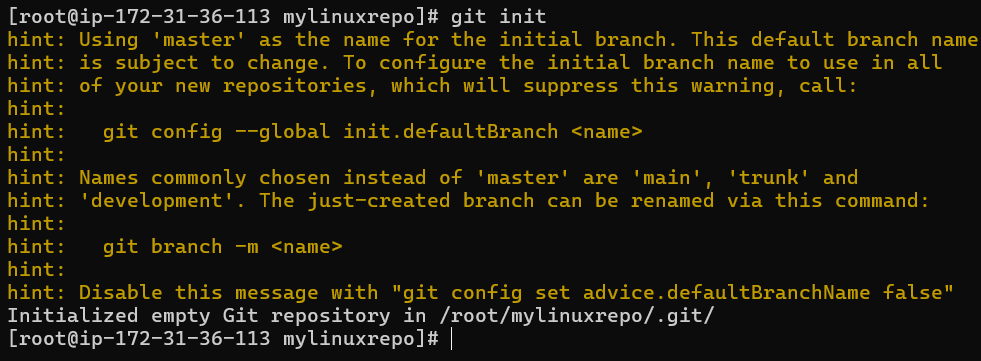
Now check agian with git status
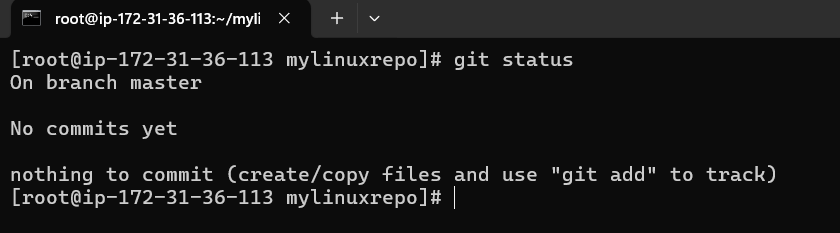
Ok now it is a local git repo. let create a bash script called addcal.py using vi editor

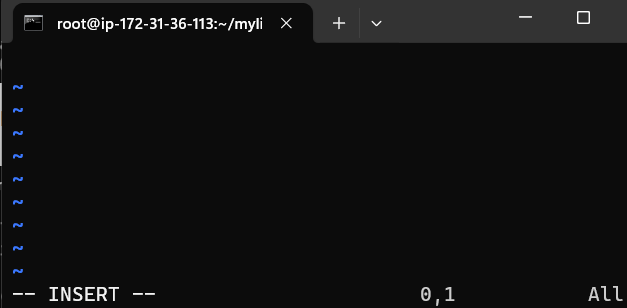
Press i for insertion mode (writing mode)
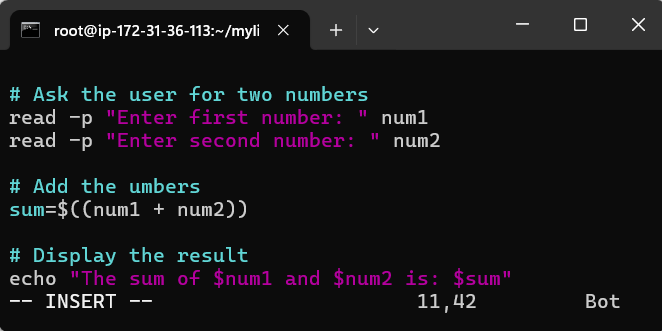
press esc (for mode) and type :wq (w mean write and q mean quit) to write and quit
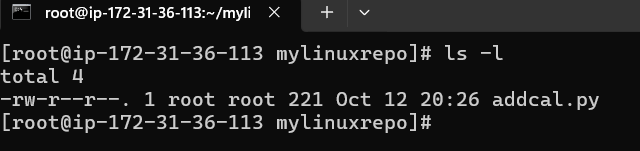
addcal.py is created and let execute it with bash addcal.py
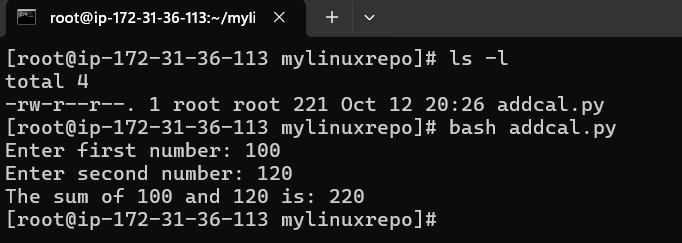
Good our bash script is working.
Note: Also my bad it is not a python script and accidentially naming it .py but it does not matter the name.
Good, next we will stage it and commit it
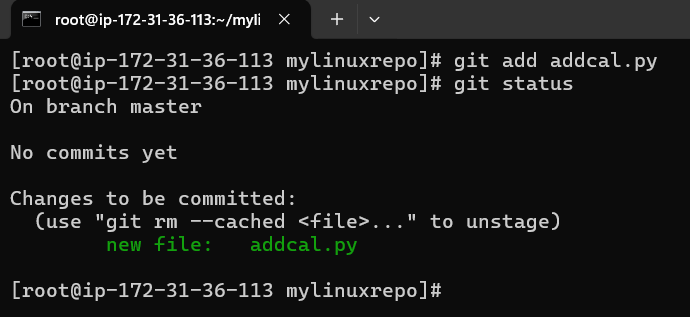
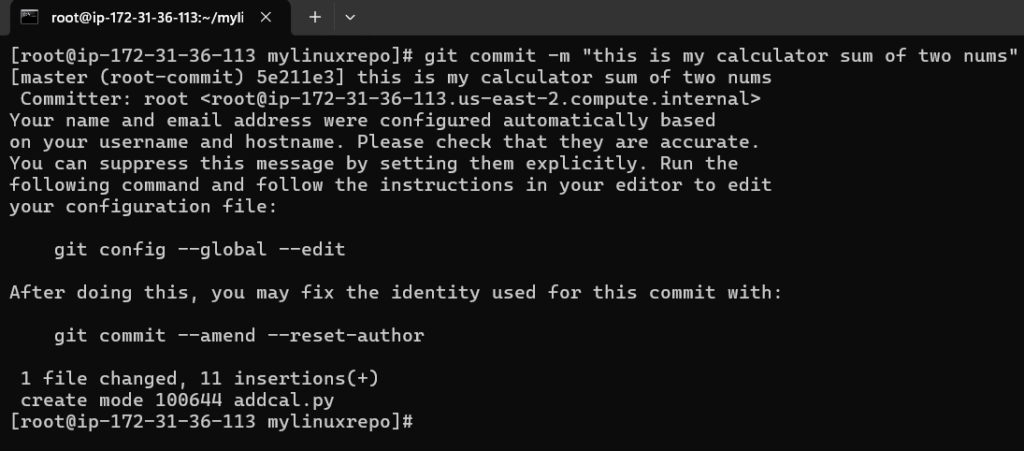
Note that I forgot to set the git config –global user.name and git config –global user.email
you can easily configure this e.g:
git config –global user.name myuserame
git config –global user.email myusername@gmail.com
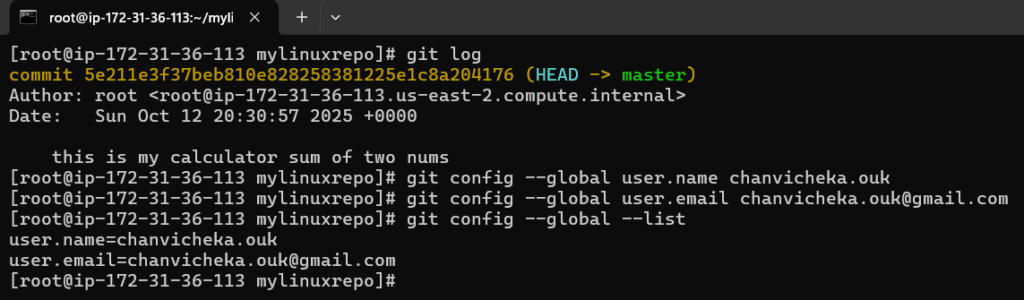
Next, we will have to link it to the central distributed remote repo aka GitHub
Note, also authentication in linux with username, password would not work and we would have to use personal access token.
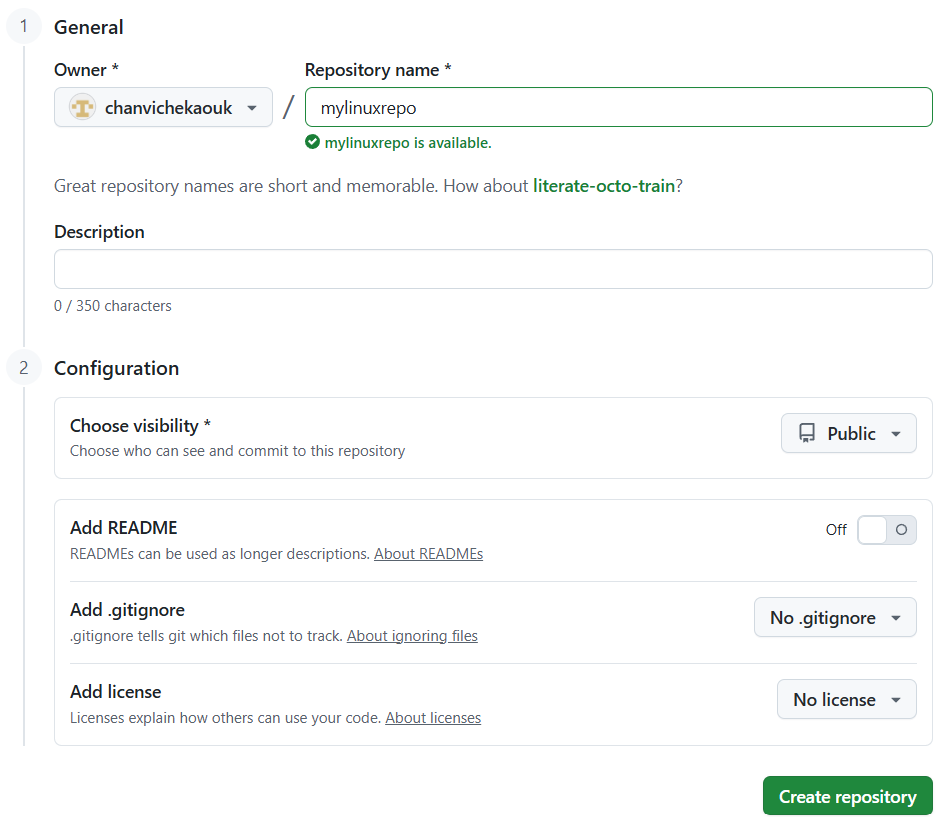
Ok now connect our local repo to remote repo in GitHub

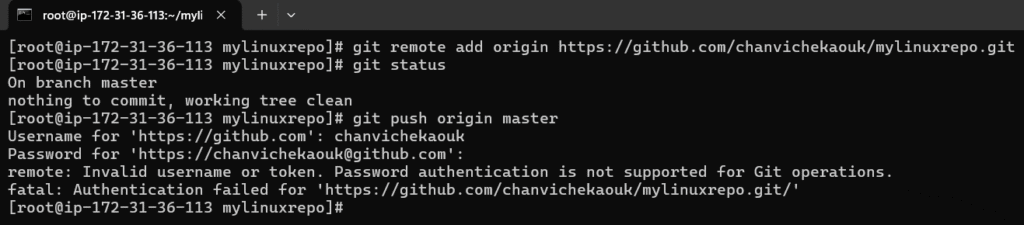
Here when authentication through https with username/password would never work here in Linux so we will have to use token
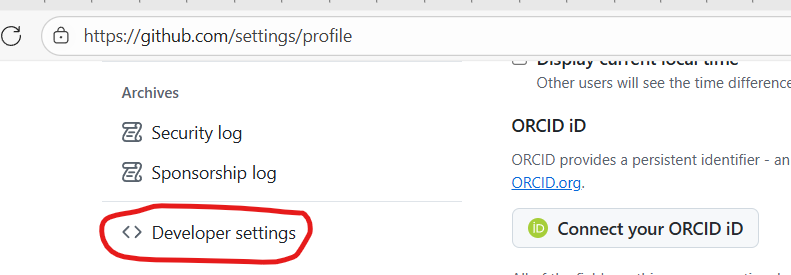
Go to your GitHub profile and setting and click on Developer settings
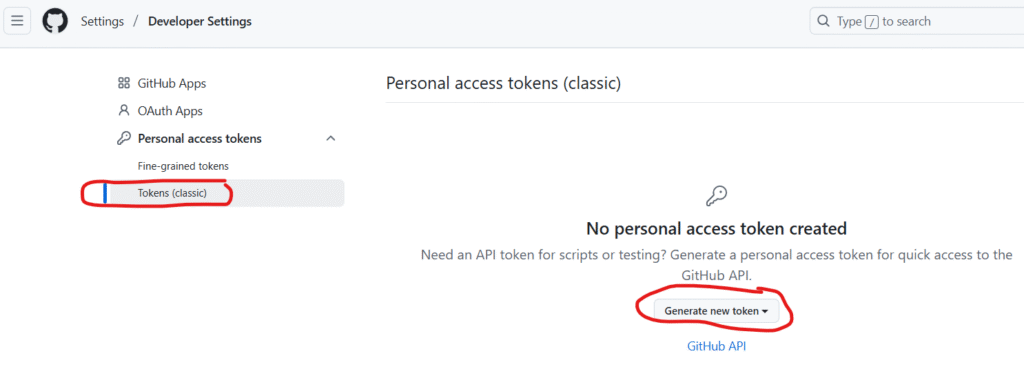
Click on Token (classic) and click Generate a new token
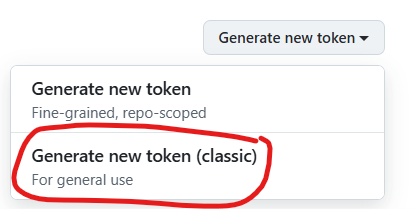
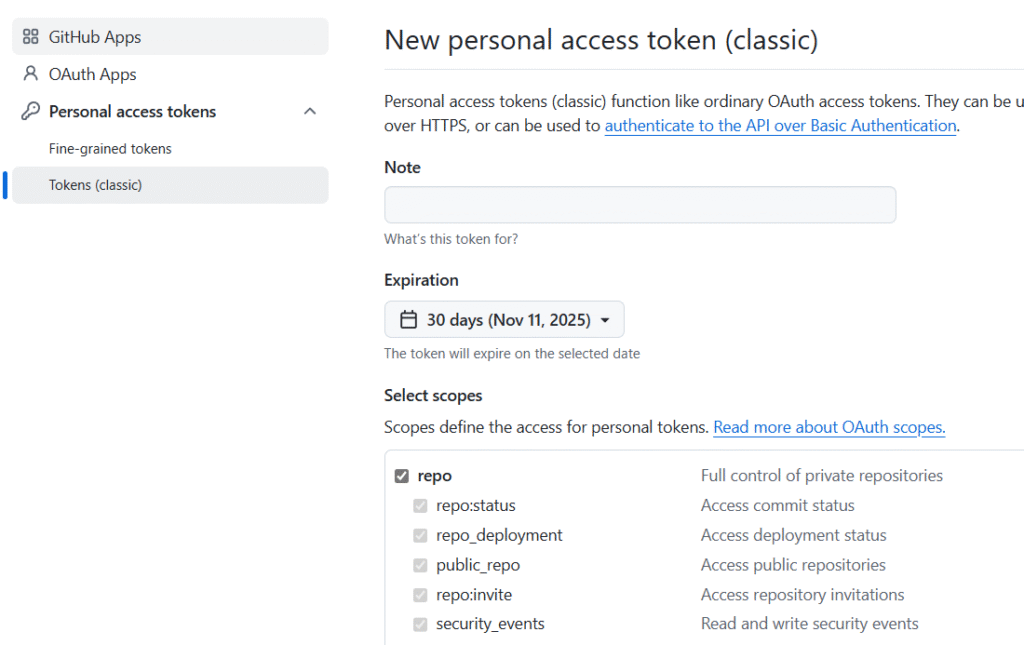
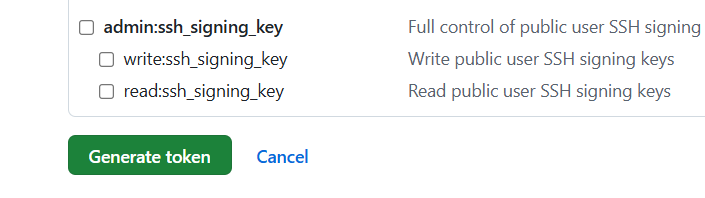
Checked repo and Click Generate token button at the buttom
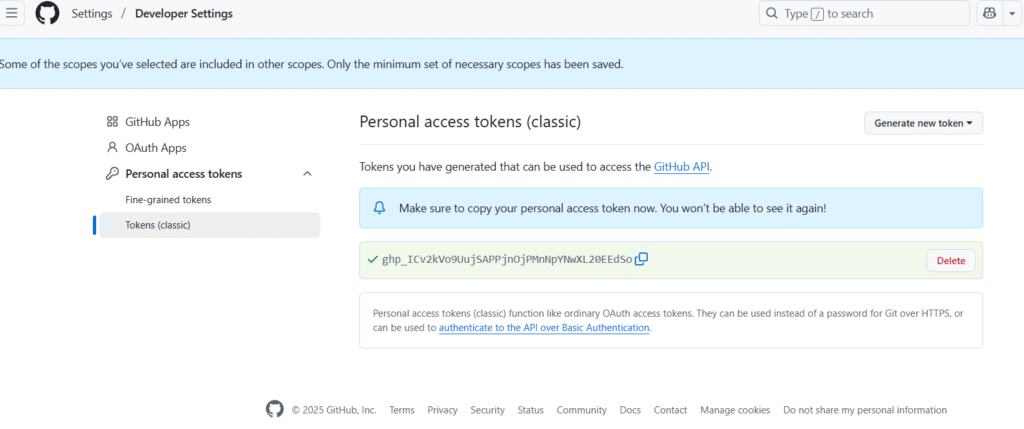
Copy the token and saved it to somewhere secured
Now let try to add our local git repo to remote git hub repo:
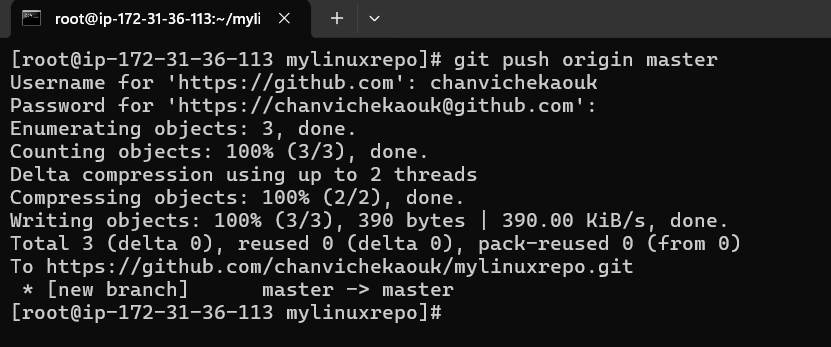
When prompt with Password, past the copied token and here we now successfully link and push our local change in our local git repo to the remote github repo:
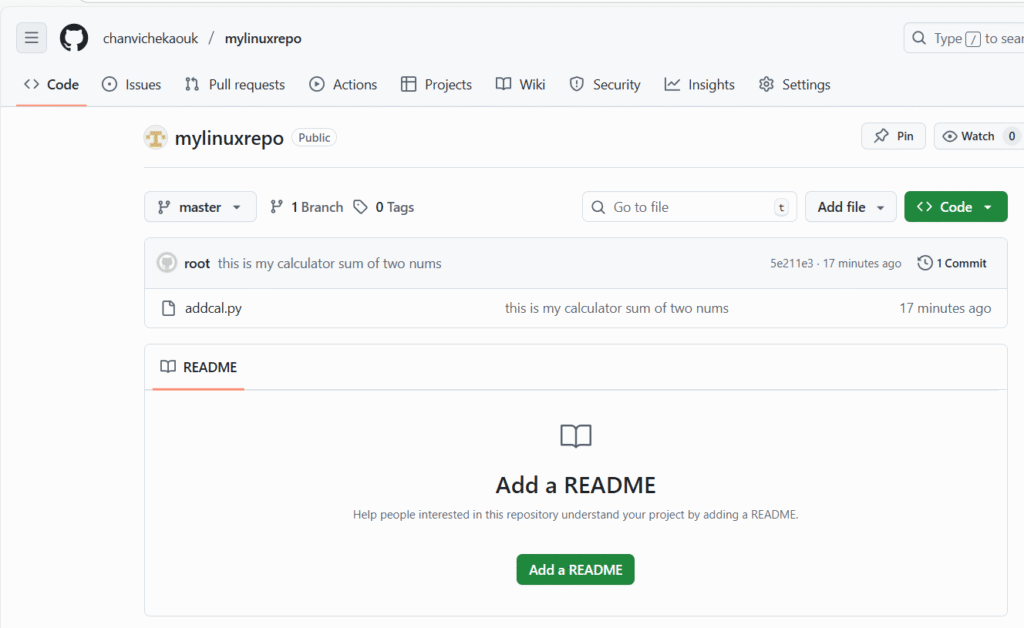
Note: I have to delete this token after this post 🙂