I planned to pick this book up in 2021.


M.S. in Computer Science and Engineering
I planned to pick this book up in 2021.
You can follow below steps:
You can check your Oracle Linux Release by execute below command at the terminal
# sudo cat /etc/oracle-release

Ok, now it is the time to install Chrome
#sudo wget https://dl.google.com/linux/direct/google-chrome-stable_current_x86_64.rpm
#sudo yum -y install redhat-lsb libXScrnSaver
#sudo yum -y localinstall google-chrome-stable_current_x86_64.rpm

Remark: If you run into following issue:
Error: Package: google-chrome-stable-88.0.4324.182-1.x86_64 (/google-chrome-stable_current_x86_64)
           Requires: libvulkan.so.1()(64bit)

you can resolve it by execute following two commands:
#sudo yum-config-manager --enable ol7_optional_latest
#sudo yum -y localinstall google-chrome-stable_current_x86_64.rpm

Installed:
  google-chrome-stable.x86_64 0:88.0.4324.182-1

Dependency Installed:
liberation-fonts.noarch 1:1.07.2-16.el7
liberation-mono-fonts.noarch 1:1.07.2-16.el7
liberation-narrow-fonts.noarch 1:1.07.2-16.el7
liberation-serif-fonts.noarch 1:1.07.2-16.el7
vulkan.x86_64 0:1.1.97.0-1.el7
vulkan-filesystem.noarch 0:1.1.97.0-1.el7
Voila, it is installed. you can find it here:


First, if you do not know how to download its iso and load it in the virtualbox, please refer to tutorial at this url: https://roboticsbackend.com/install-raspbian-desktop-on-a-virtual-machine-virtualbox/
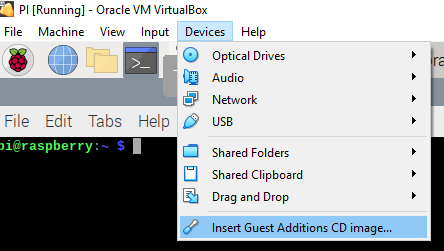
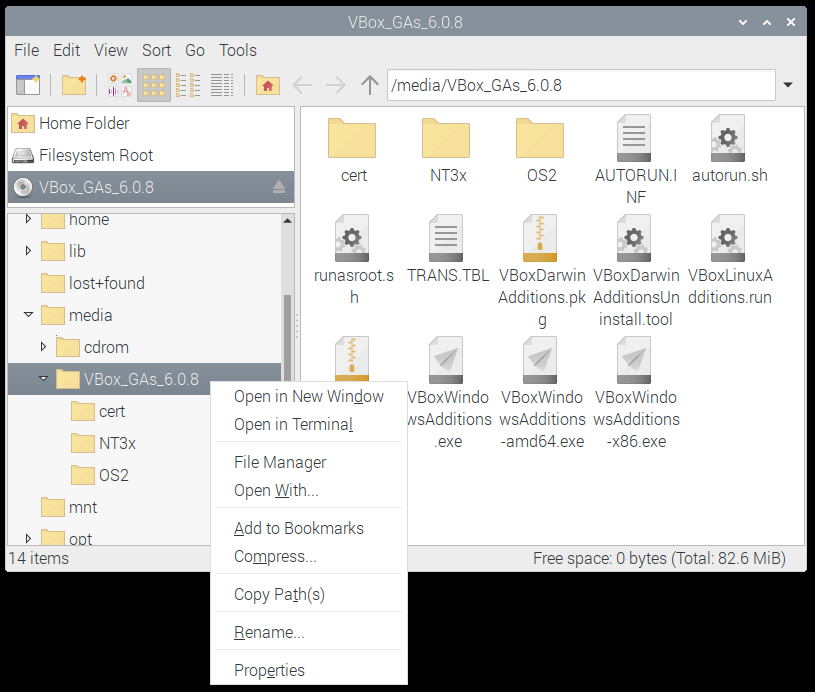
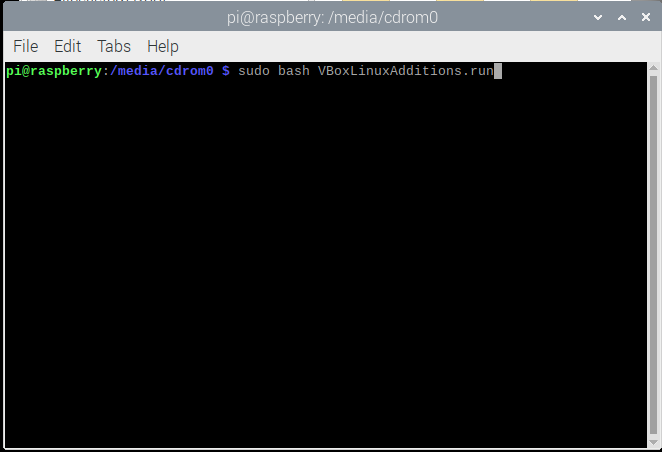
And once you have it setup and running then you will need to install virtualbox guest additions as describe here:
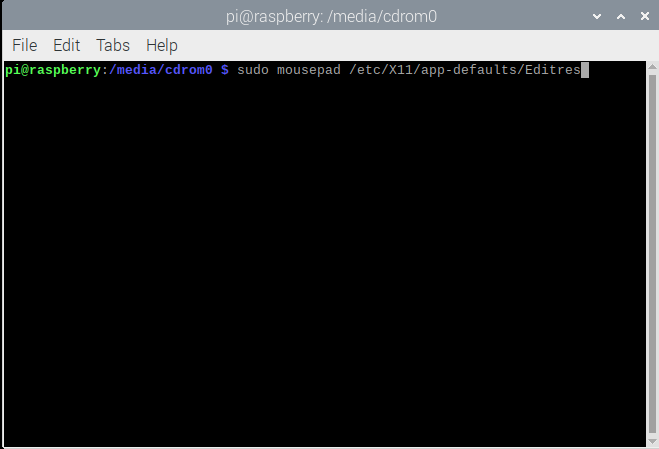
First mount it to the virtual OS

Welcome to my new personal blog. This is my first blog on the new hosting. I switched from free hosting to a paid one and unfortunately I didn’t back up my site so i have lost all contents. I will keep posting again so stay tune.