
This must be done while the VM is powered off.
Caution: it won’t work if your VM has a snapshot. You either have to restore your snapshot then resize or delete your existing snapshot(s) or clone the disk and resize and attached the resize to the current state. Also be careful with it as there is no shrinking support so in case you accidentally resize it virutally to sth much larger than your host hdd then there won’t be easy to revert it (unless you have a snapshot but restoring snapshot you will loss your current state)
PHASE 1 — VirtualBox layer
Find the disk path
In VirtualBox Manager:
- Select your VM
- Settings → Storage
- Click the disk → look at the Location field
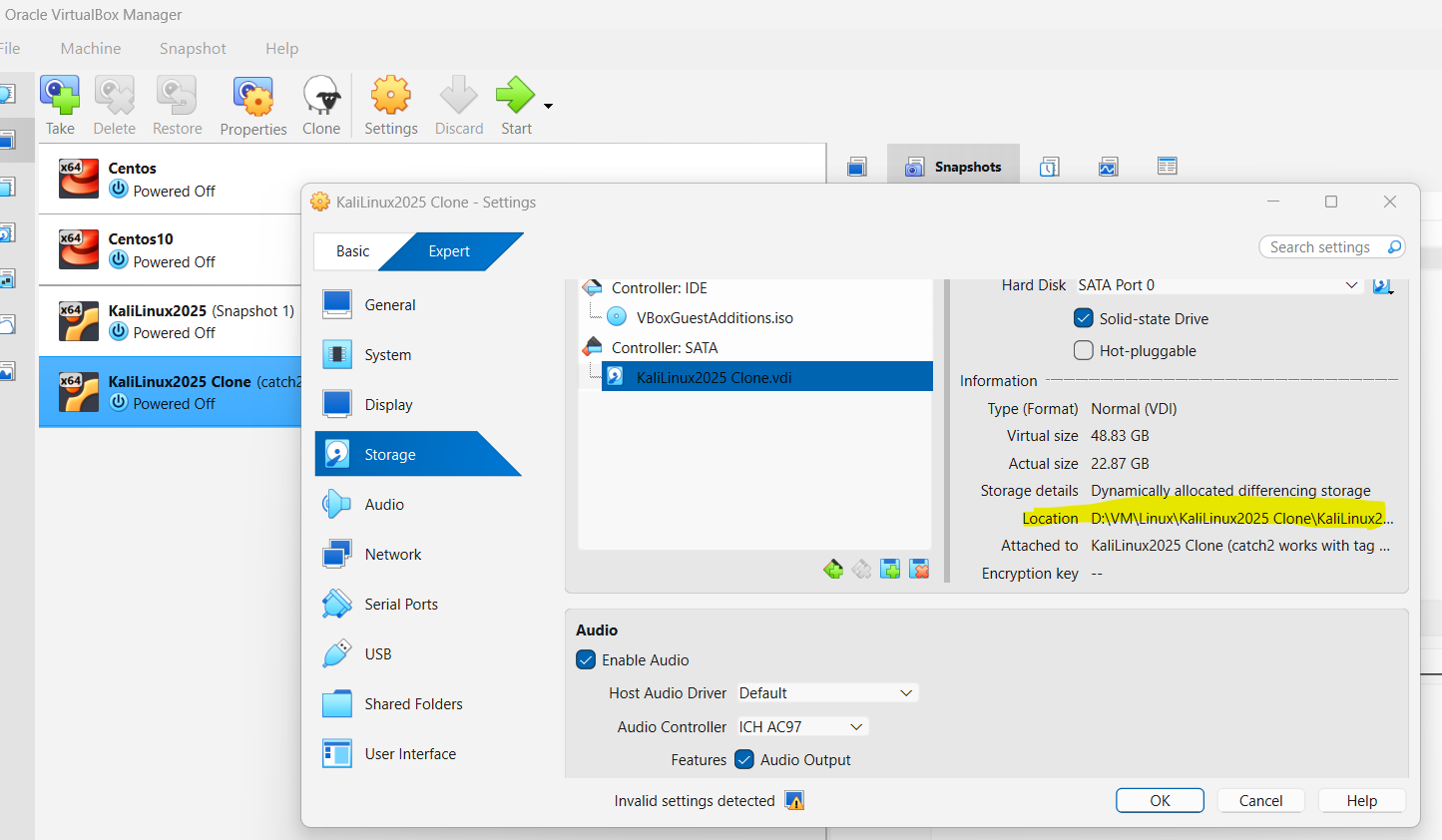
Step 1: copy the location of hd you wish to resize
e.g mine is D:\VM\Linux\KaliLinux2025 Clone\KaliLinux2025 Clone.vdi
Step 2: Then go to directory where you installed your virtualbox to
e.g mine is C:\Program Files\Oracle\VirtualBox
3. At command prompt, execute as seen here where I wish to resize mine to 50GB
.\VBoxManage.exe modifyhd "D:\VM\Linux\KaliLinux2025 Clone\KaliLinux2025 Clone.vdi" --resize 50000
You should see something like this:
0%…10%…20%…30%…40%…50%…60%…70%…80%…90%…100%

This enlarges the virtual disk container, but not the partitions inside it.
PHASE 2 — Partition table layer
After resizing the VDI, the guest OS sees a bigger disk, but the partitions still end at the old size.
Step 4: Resize the partitions
For your Kali VM (MBR layout):
sda2= extended partitionsda5= logical LVM partition
You must expand both.
Inside parted:
sudo parted /dev/sda
(parted) resizepart 2 100%
(parted) resizepart 5 100%
(parted) quit
Now the partition table matches the new disk size.
PHASE 3 — LVM layer
Step 5: Resize the physical volume (PV)
sudo pvresize /dev/sda5
This tells LVM: “The partition is bigger now — use the new space.”
Step 6: Resize the logical volume (LV)
sudo lvextend -l +100%FREE /dev/mapper/kali--vg-root
This expands the LV to fill all free space in the VG.
PHASE 4 — Filesystem layer
Step 7: Resize the filesystem
For ext4:
sudo resize2fs /dev/mapper/kali--vg-root
This expands the filesystem to fill the LV.
FINAL CHECK
df -h /