This is the modern, clean, recommended workflow for most developers.
What it does
Fetches the latest remote commits
Replays your local commits on top of the updated branch
Produces a linear, easy‑to‑read history
Avoids unnecessary merge commits
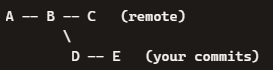
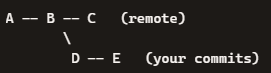
Visual example
Before rebase:
After:
Your commits are rewritten to sit on top.
When to use it
Solo development
Feature branches
Clean, audit‑friendly history
Government‑grade or enterprise workflows
When you want to avoid messy merge commits
Why pros prefer it
History stays linear
git log is readable
CI/CD pipelines behave more predictably
Easier code reviews
🟦 git pull --no-rebase (default merge behavior)
This performs a merge instead of a rebase.
What it does
Fetches remote commits
Creates a merge commit combining remote + local work
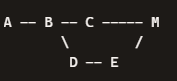
Visual example
Before:
After:
Where M is a merge commit between C head from remote and E head from your commit so M was a merged result of C & D, E.
When to use it
Shared branches with many contributors
When rewriting history is not allowed
When you want to preserve the exact order of events
When your team explicitly requires merge commits
Downsides
History becomes noisy
Merge commits pile up
Harder to read
Harder to bisect
How to check if your local git is default –no-rebase or configured to –rebase
git config list
user.name= my name user.email=my.name@gmail.com pull.rebase=true core.repositoryformatversion=0 core.filemode=true core.bare=false core.logallrefupdates=true remote.origin.url=git@github.com:chanvichekaouk/catch2-hpp-unit-test.git remote.origin.fetch=+refs/heads/:refs/remotes/origin/ branch.main.remote=origin branch.main.merge=refs/heads/main branch.main.vscode-merge-base=origin/main
or retreive value of specific config:
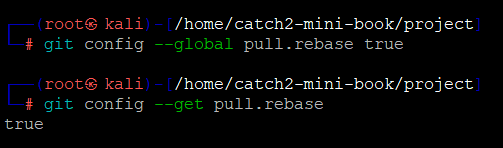
git config --get pull.rebase
if it shows true then yes it is configured to –rebase.
show empty or false then yes it is default to –no-rebase
How to set it to –rebase by default
For all repositories:
git config --global pull.rebase true
For just this repo:
git config pull.rebase true
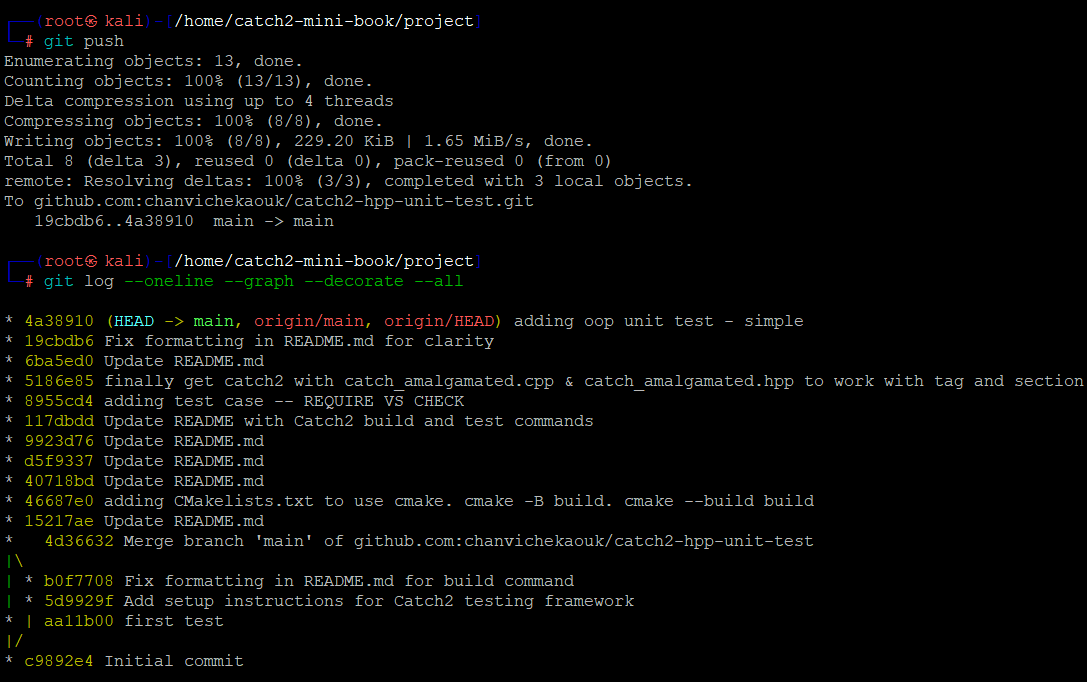
e.g here initially my local git is set to default –no-rebase so you can see the deviation of the line as it is a merge btw remote head and my local commit since then I have configured global to –rebase so my history log will be a linear line which as pointed out would be easy to read.
Remote SSH in VS Code is one of the cleanest ways to work on a remote Linux machine as if the files were local.
🛠️ What VS Code Remote SSH actually does
It installs a lightweight VS Code server on the remote machine over SSH. Your editor runs locally, but all:
files
terminals
extensions (server‑side ones)
debugging
run on the remote host.
🚀 How to set it up
1. Install the extension
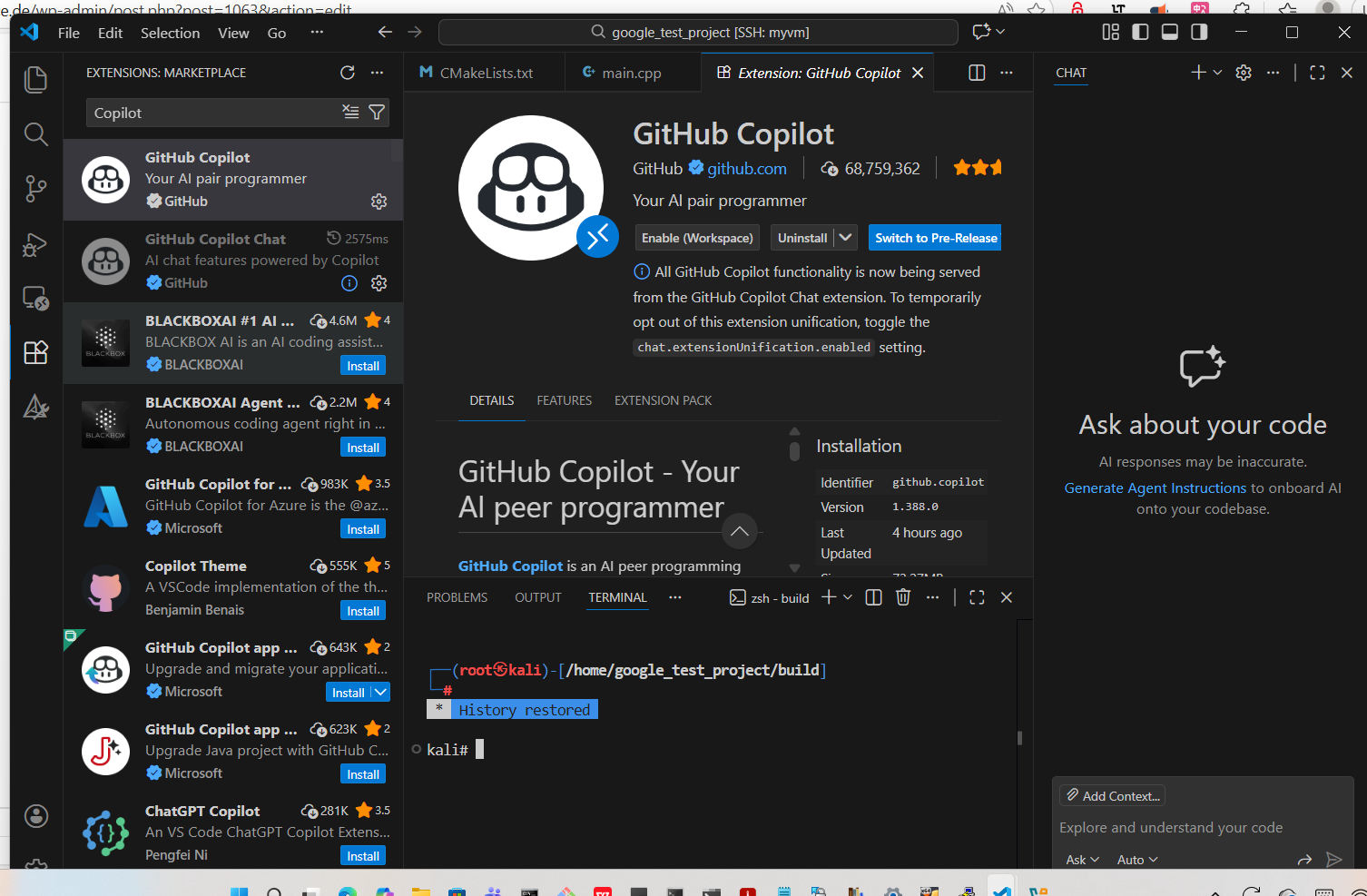
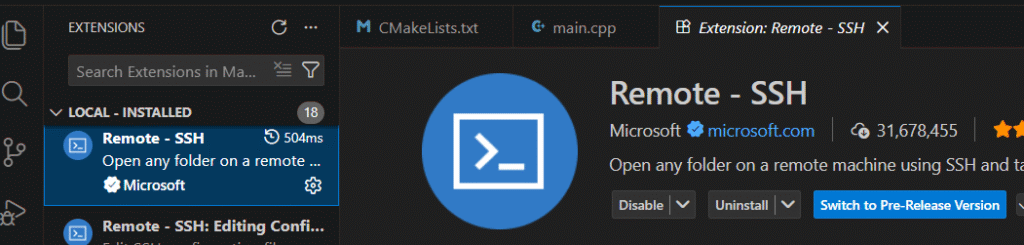
Open VS Code → Extensions → search “Remote – SSH” → install.
2. Ensure you can SSH normally
From your terminal, confirm:
test below at command prompt:
ssh username@hostname
If this doesn’t work, VS Code won’t connect either.
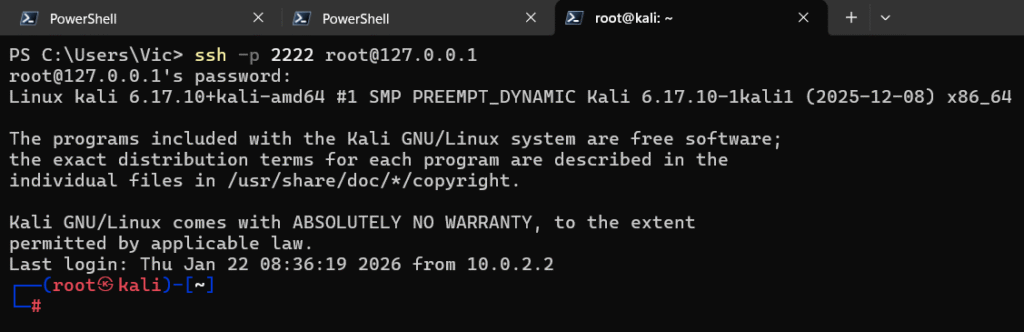
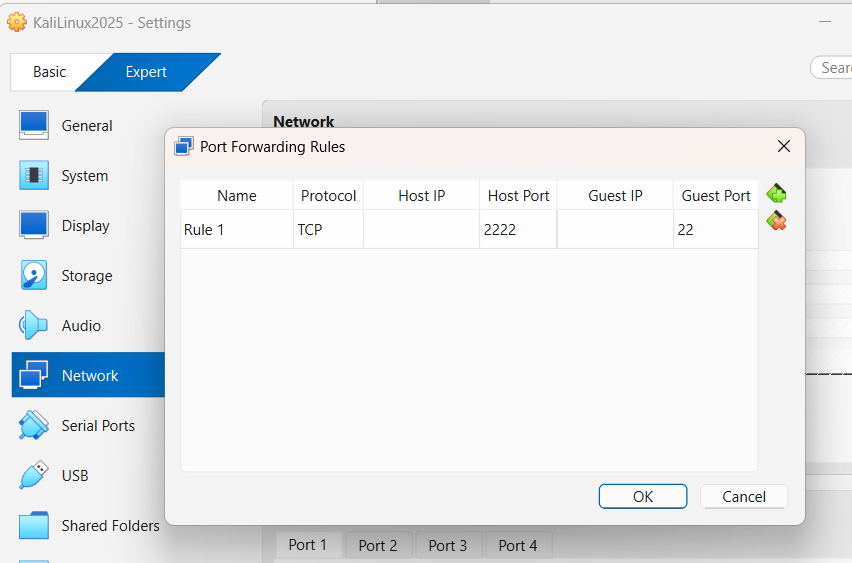
Note: if you use NAT in your VM, you would have to create a port forward 2222 from the host to 22 in the guest/remote VM
you should connect using your host instead e.g ssh -p port username@127.0.0.0
3. Add your host in VS Code
Open the Command Palette:
press:
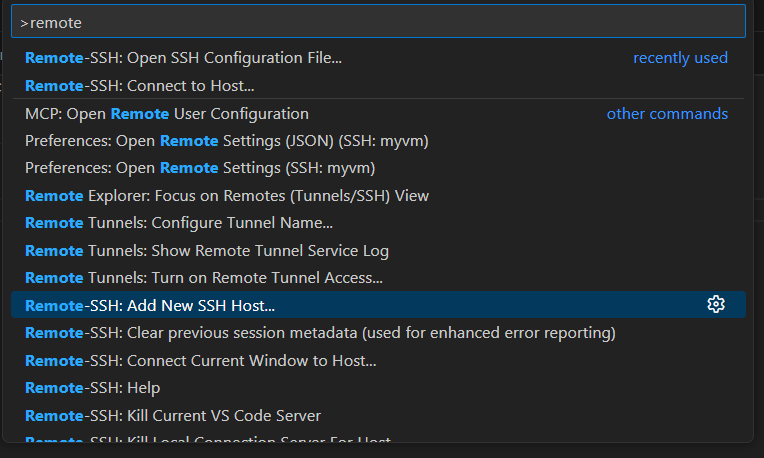
Ctrl + Shift + P → “Remote-SSH: Add New SSH Host”
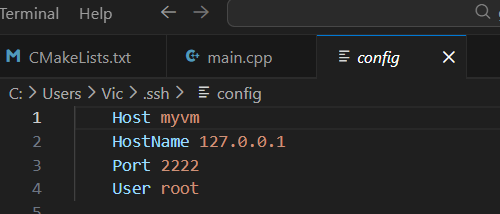
e.g here my VM is using NAT so I have to use port forwarding to be able to remote connect ssh to it and I like to use root to remote connect as it is my local VM so no security concern here.
4. Connect
Ctrl + Shift + P → “Remote-SSH: Connect to Host…”
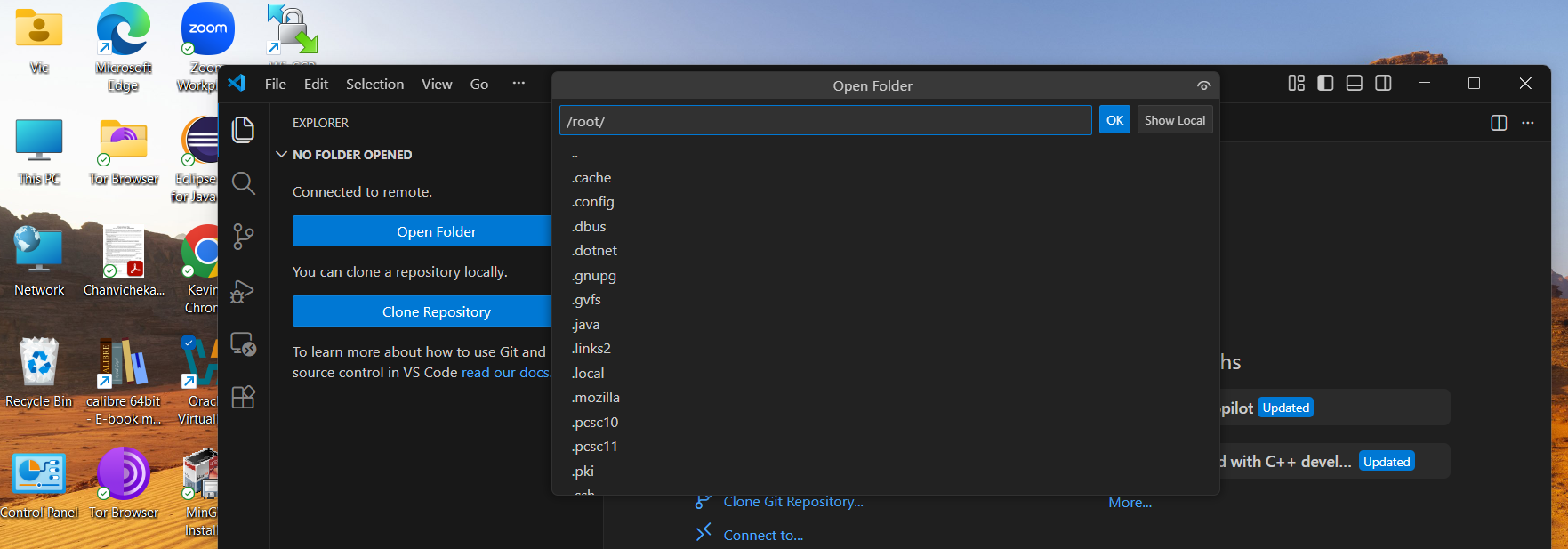
Enter the password of my root user and hit Enter and now I am using VScode from my windows host to remote develop on my VM.
:set paste is one of those tiny Vim commands that solves a huge headache. Since you’ve been wrestling with copying from Windows into Vim, this is exactly the right tool.
Here’s the clean, practical breakdown.
🧵 What :set paste actually does
It tells Vim:
Do NOT auto-indent
Do NOT auto-format
Do NOT rewrap text
Do NOT insert weird characters when pasting
This prevents the classic “pasted text turns into a mess” problem.
🛠 How to use it correctly
1. Before pasting
In normal mode:
type:
:set paste
Then enter insert mode:
type:
i
Now paste using your terminal shortcut (e.g., Ctrl+Shift+V, right‑click → Paste, etc.).
⚡ Faster method: toggle paste mode
If you want a quick toggle key:
Add this to your ~/.vimrc:
type:
set pastetoggle=<F2>
Now pressing F2 instantly switches paste mode on/off.
Through my professional career, I was tasked to start support our client on Linux since our competitor started supporting theirs on Linux. I started developing our C# daemon service that acted as a client loader (it periodically talks to the enterprise to see if there are any packages scheduled to be deployed/downloaded and transferred to target client – Linux platform). it runs at startup in the background, and it is in fact a WCF where its front-end client is an embedded browser Chromium Embedded Framework (CEF) running Html/Css/Js etc for the UI and it interacts to this client loader C# daemon (wcf) through its service contract. I really love this project since I started its development from scratch and I learned a lots about Linux. I learned about firewalld (we locked down lots of ports by default for security), Linux securities (proxy, sudoers etc..), learn how to launch UI application since our Linux Image does not have desktop, bash script (for automation rpm build and within rpm itself), systemd (for daemon service related), bash script for automation, learned how to build rpm since we need to bundle its related files (dependencies dlls, noted we use mono so I have to bundle mono with it as well) as an rpm which can then be easily preinstalled on our Linux Hardware image by our hardware team, which we periodically release internally with our hardware team (yes we sell our enterprise application with our discounted Hardware devices e.g end user only has to pay $1 for the device as long as they buy our software contract). I also automated its rpm build nightly using Jenkin hudson where the Hudson jenkins agent running in Windows would execute its job per schedule in Hudson job configuration and I used it to execute some automation win32 batch scripts where it does automated things like Msbuild our .sln and then copied the related output files passwordless via ssh using private/public key to our Linux build machine where its designated bash script would then be executed for the rpm build. I wrote both the windows batch script and also Linux bash script for the automation of our daemon rpm nightly build so I can share the output rpm internally between hardware team and qa team to test it.
Also, when we started our development, we tried it with Ubuntu, later Centos, then Oracle Linux. And Oracle Linux is quite similiar to Centos because both are the Rebuilds of Red Hat Enterprise Linux (RHEL)
Our client is now running on Linux using .Net Core and now .Net 8
Note:
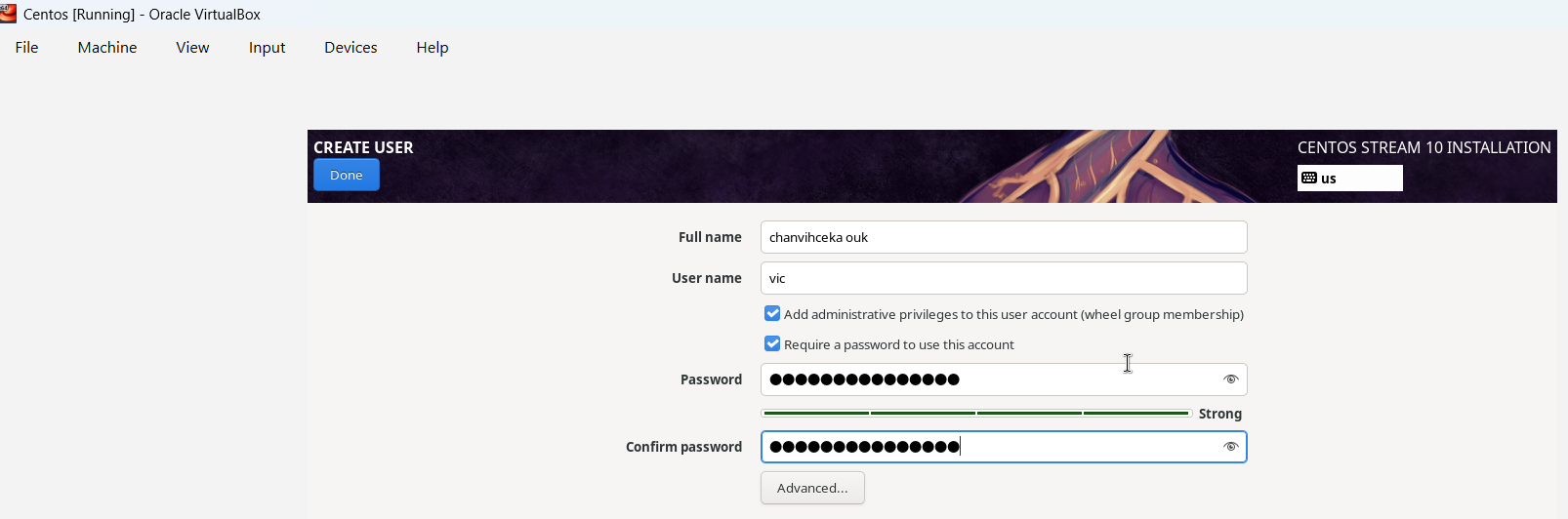
I just noticed that I wrote my full name wrong urgh.
I have used and programmed in both languages professionally and academically.
For C#, I prefer VS studio or its light weighted version VS code whereas Java, I prefer Eclipse or NetBean.
These two languages are high level languages object oriented programming languages where it uses Class and Object for organizing code and code reusability/scalability.
These two programming languages are quite similar, in my own opinion it is 88% similar since they operate based on the same concept of OOP e.g Class, Object, A. P.I.E (Abstraction, Polymorphism, Inheritance & Encapsulation), Multithreading, Thread-safe capability, Exception Error Handling, Auto memory management with its memory garbage collector, Communication between multithreading, Primitive types and Reference types, Type safety, access modifier. C# supports both strongly type and weakly type like dynamic (runtime type) whereas Java only supports strongly (statically) type.
In short, they both emphasize SOLID capabilities.
S: Single Responsibility principle:
a class should only have one reason to change or in short, a class should only have single responsibility.
E.g: if an employee class has EmployeeSalaryCalculation() and also SaveEmployeeData(), it breaks this principle since these two actions are two different responsibilities and to satify this principle we should separate it to another class e.g Employee class (salary related etc.) and EmployeeReposity (data/db related etc.)
O: Open/Closed principle:
Open for Extention but Closed for modification. In short, it refers to abstract class and sub class where sub class can derive from abstract class and make its own version (extension) of abstract class method (abstract method) but no modication can be made to the abstract method because abstract method has no implementation (Closed for modification).
L: Liskov principle:
In short, it refers to polymorphism. Poly means many form. it refers to the ability of object to take on many forms. e.g a sub class can be used in place of the parent class and its method can change based on the version of each sub class (object can take on many forms). There is two types of polymorphism. Overloading (compile time polymorphism) and overriding (runtime polymorphism). Overloading e.g method overloading where same method name with different number of arguments can behave diferently based on the number of arguments whereas Overriding e.g several diferent sub class override parent class’s method.
I: Interface Segregation principle:
a client should not be forced to implement interface that they do not need or use. In short, we should always try to break big interface into subtle interface so that way it is easy for a client to only implement interface it needs and also since both Java and C# support multiple interfaces implmentation.
D: Dependency inversion principle:
This principle emphasizes the importane of decoupling high level modules from low level module. high level module should not depend on low level module and vice versa through abstraction and interface. In short, we can accomplish this principle through dependeny injection so instead of having low level class as member of our high level class (hard coupling) we should introduce interface and have interface as a member instead so that way the low level classes that implement the interface can be inject at runtime either through constructor or method that accept the interface type as an argument.
Ok let get back to illustrate that both langauge are quite similar. if you can program in C#, you should definitely be able to program in Java easily.
Both support Class and instantiate of the Class aka Object
Both do not support multiple inheritance
Java
-------------------------------------
Class MySubClass extends MySuperClass
C#
-------------------------------
Class MySubClass : MySuperClass
Both support ability to call super class (base class)constructor
Java
super(args)
C#
base(args)
Both support multiple interfaces implementation
Java

class MySubClass implements MyInterface1, MyInterface2
C#
class MySubClass : MyInterface1, MyInterface2
Both support the ability to prevent other classes from inheriting from a class
Java
final class Vehicle {
    void display() {
        System.out.println("This is a vehicle");
    }
}

// This will cause a compile-time error
// Error: Cannot inherit from final 'Vehicle'
class Car extends Vehicle {

}
C#
sealed class Vehicle
{
    public void Display()
    {
        Console.WriteLine("This is a vehicle");
    }
}

// This will cause a compile-time error
// Error: 'Vehicle' is sealed and cannot be inherited
class Car : Vehicle
{
}
Java final field and C# readonly field
Both does the exact same thing: Once assigned, cannot be changed.
Java final method and C# sealed override method
Both does exact same thing: it prevents sub class from overriding the super class method.
Both support Multithreading through Thread class
Java
a) Create Thread through Extend Thread class
class MyThread extends Thread {
    public void run() {
        System.out.println("Thread running");
    }
}

public class Main {
    public static void main(String[] args) {
        MyThread t1 = new MyThread();
        t1.start();

        MyThread t2 = new MyThread();
        t2.start();
    }
}

b)Create Thread through Implement Runnable interface
class MyRunnable implements Runnable {
    public void run() {
        System.out.println("Runnable running");
    }
}

public class Main {
    public static void main(String[] args) {
        Thread t1 = new Thread(new MyRunnable());
        t1.start();

        Thread t2 = new Thread(new MyRunnable());
        t2.start();
    }
}
C# using System; using System.Threading;
class Program { static void Main() { Thread t1 = new Thread(new ThreadStart(Run)); t1.Start();
Thread t2 = new Thread(new ThreadStart(Run)); t2.Start(); }
Both support Exception and Error handling through try/catch/finally block
Java
try {
    // code that might throw an exception
    int result = 10 / 0;
} catch (ArithmeticException e) {
    System.out.println("Cannot divide by zero");
} finally {
    System.out.println("Finally block always executes");
}
C#
try {
    int result = 10 / 0;
} catch (DivideByZeroException e) {
    Console.WriteLine("Cannot divide by zero");
} finally {
    Console.WriteLine("Finally block always executes");
}
Both support throws exception within a method so as for a calling method to handle/catching the exception and log exception appropriately
Note: there is subtle difference where Java support checked Exception (forced checking exception by the compiler so the calling method has to properly handle it) through throw whereas C# does not have checked Exception.
Java
void readFile() throws IOException {
    //code
    throw new IOException("File not found");
}
C#
void ReadFile() {
    throw new IOException("File not found");
}
Both support Encapsulation through access modified e.g private, protected, public etc…
Java Access Modifiers:
Modifier
Class
Package
Subclass
The rest of the World
private
✅ Yes
❌ No
❌ No
❌ No
default (no modifier)
✅ Yes
✅ Yes
❌ No
❌ No
protected
✅ Yes
✅ Yes
✅ Yes
❌ No
public
✅ Yes
✅ Yes
✅ Yes
✅ Yes
C# Access Modifiers:
Modifier
Class
Derived Classes
Same Assembly
Other Assemblies
private
✅ Yes
❌ No
❌ No
❌ No
protected
✅ Yes
✅ Yes
❌ No
❌ No
internal
✅ Yes
❌ No
✅ Yes
❌ No
protected internal
✅ Yes
✅ Yes
✅ Yes
❌ No
public
✅ Yes
✅ Yes
✅ Yes
✅ Yes
Note: in C#
class without access modifier = internal class.
class members without access modifier = private field.
Both support ThreadSafety
First what is thread safe. Thread safe means to prevent race condition between multiple thread. race codition occures when multiple threads access and update a shared resource at the same time. To prevent race condition in multiple thread, C# use lock object and Java use synchronize object so only one thread can acquired the shared resource and update it once at a time.
Both support communication between multiple thread
C# use AutoResetEvent or ManualResetEvent to allow one thread to signal one or more waiting threads that some event has occurred whereas Java uses notify() and notifyAll()
There are a few more but with these it shows that both languages are quite similar so if we can program in C# we can say we can program in Java. Java is an independent platform language and with .net core, it makes c# also an independent platform language.
I’ll go over this topic this weekend, as it will also help me refresh my own memory of it.
In earlier topics, we have to manually create the Amazon AWS EC2 cloud instance manually but with Terraform – A tool from HashiCorp that lets us define infrastructure as code and it allows us to automate the provision of this instance automatically through hcl code (HashiCorp Configuration Language) and it is file with .tf extension — for example1: main.tf
In short, with Terraform, we can use it to define infrastructure as code as seen above so it allows us to automate the infrastructure (AWS, GCP, Azure, etc.) through GitLab Pipelines instead of manual provisioning. It’s very useful since manual processes are typically more prone to errors than automated ones.
e.g we would have a GitLab project that is responsible to automate the infrastructure of the cloud providers like AWS, Google Cloud Platform (GCP), Azure etc. and another GitLab project that is responsible to do the actual software development on that said infrastructure.
And with this automation of the infrastructure of the cloud providers we can quickly provision them through code – hcl code. It is an advance topic.
Setup aws ec2 cloud amazon linux and install Apache HTTP WebServer (httpd)
Configure the handshake between GitLab’s CI/CD pipeline and Apache WebServer through ssh using private/public key
Give GitLab CI/CD pipeline instruction in .gitlab-ci.yml
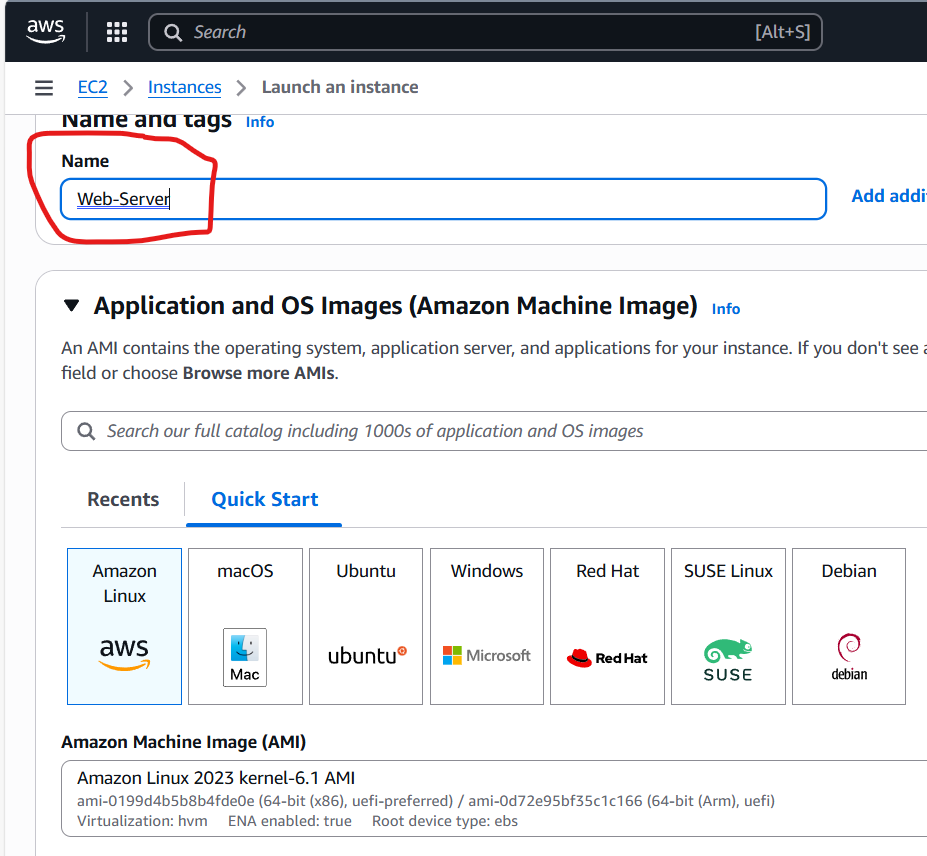
First, let setup our web server using aws ec2 cloud amazon linux instanceand then install Apache WebSever
Name: Web-Server
Choose Amazone Linux
Use my existing keypair
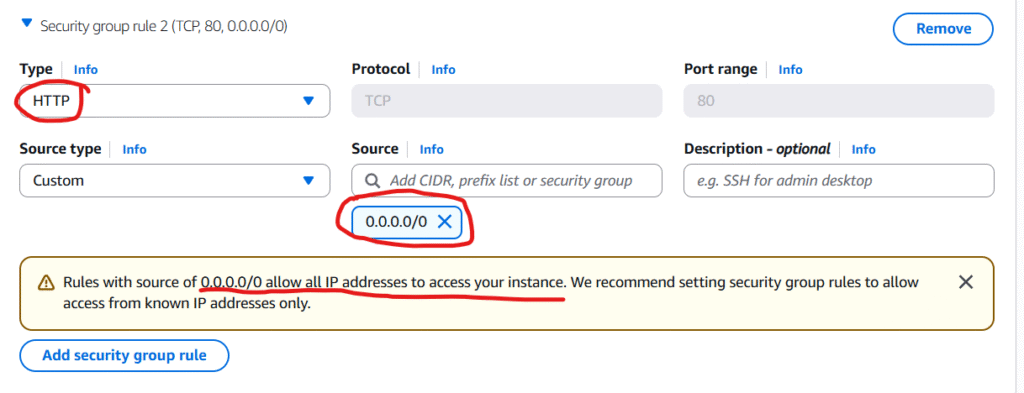
In Network settings section, we are going to click on Edit and Click Add security group rule
Note: for the simplicity of this post/demonstration, I choose http type (I know it is not secured) because if we choose https we have to configure and use tls for traffic encryption but that is not the intention of this post so I will go with http for simplicity’s sake.
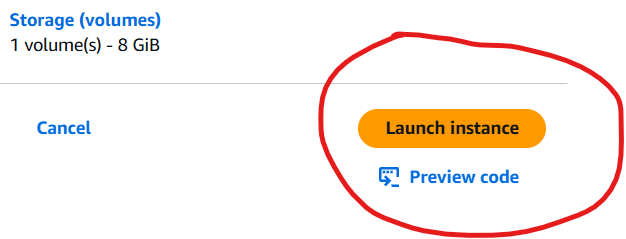
Go ahead and we click on Launch instance ec2
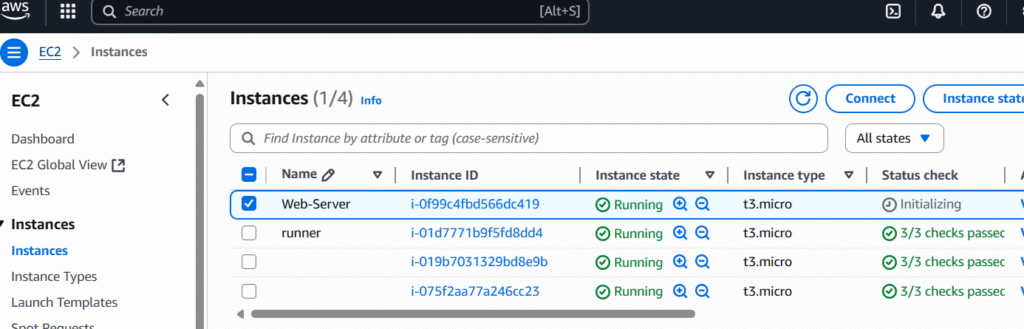
Ok our designated Web-server linux instance is running.
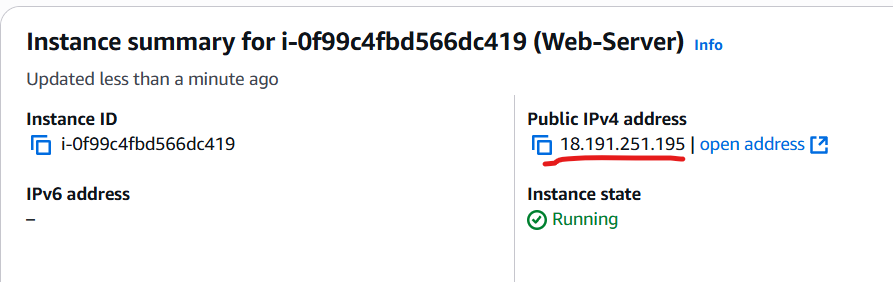
Note down its ip address above
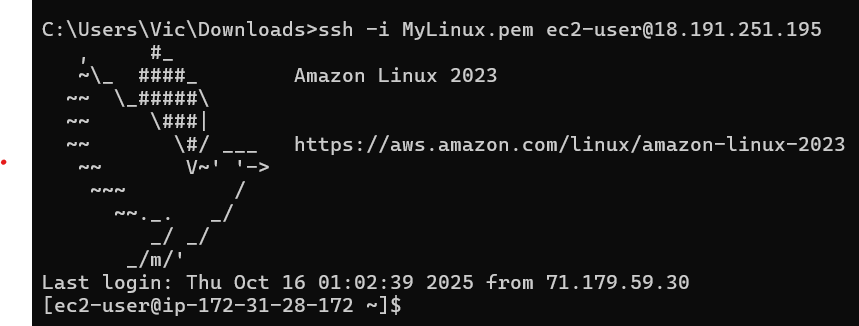
at our win machine, we will remote ssh to it using private key MyLinux.pem so we can then install our Apache web server there
we are connected. next, we will have to elevate ourselves to root with sudo -i so we can install the Apache web server
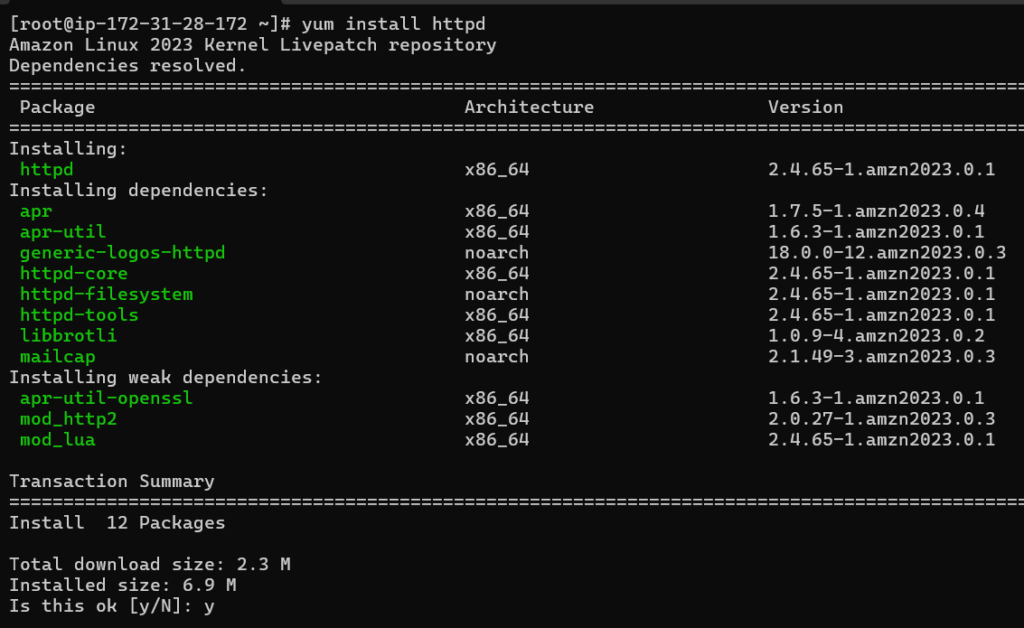
Next, we will yum install it where httpd is the Apache Web Server.
type y and enter to confirm the installation
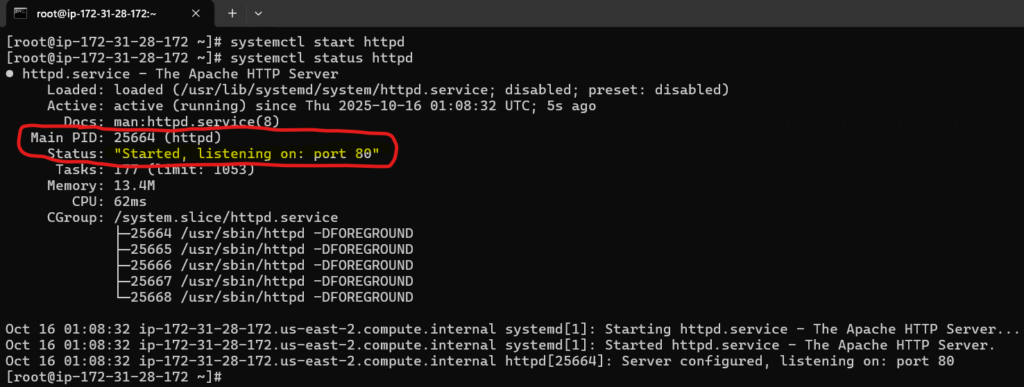
install completed and this looks good so let start and check the status of our Apache web server daemon service
systemctl start httpd
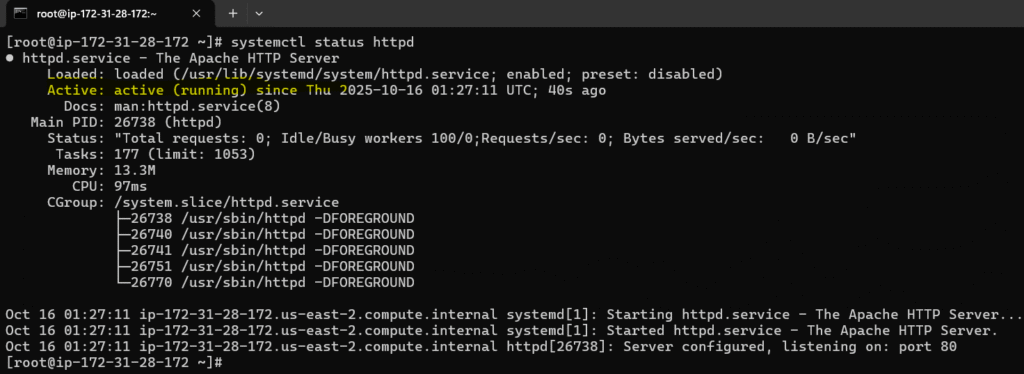
systemctl status httpd
Good, it started and running with pid 25664
we can check it in the task managers with ps aux | grep 25664
yes it is there running as daemon /usr/sbin/httpd -DFORGROUND
let makes it run at start up with systemctl enable httpd
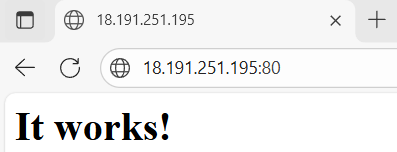
let check our web server through the browser client to make sure it is actually running as well and listing on port 80 that we have configured in the security group rule
By going to the browser and type our web server amazon linux public ip address (note we don’t have to specify its default 80) and yes it is running and listening on port 80 as expected
Second, we need to configure the handshake between our web server here and gitlab.
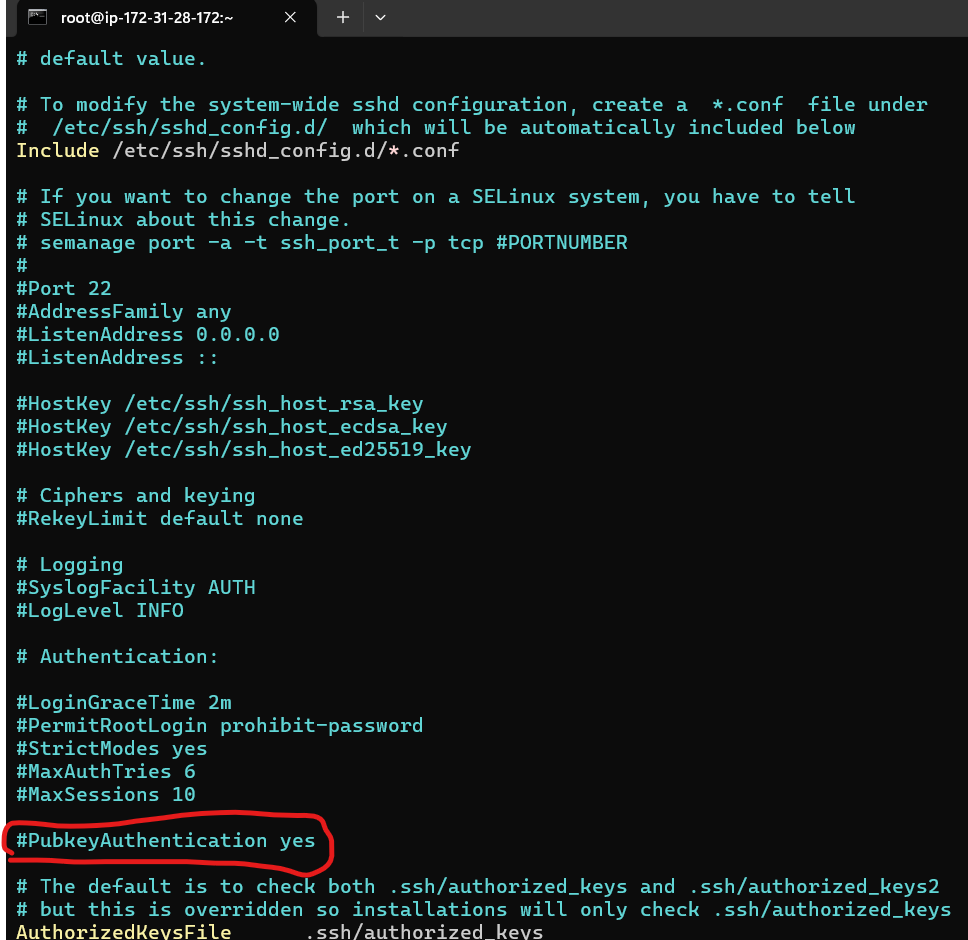
that is being said, we will do that through ssh where gitlab will use private key and our apache webserver would then use the mactching public key so gitlab can remotely deploy stuff to our apache web server. So let turn on public key authentication for our apache web server:
Enable Public Key Authentication in SSH Server
sudo vi /etc/ssh/sshd_config
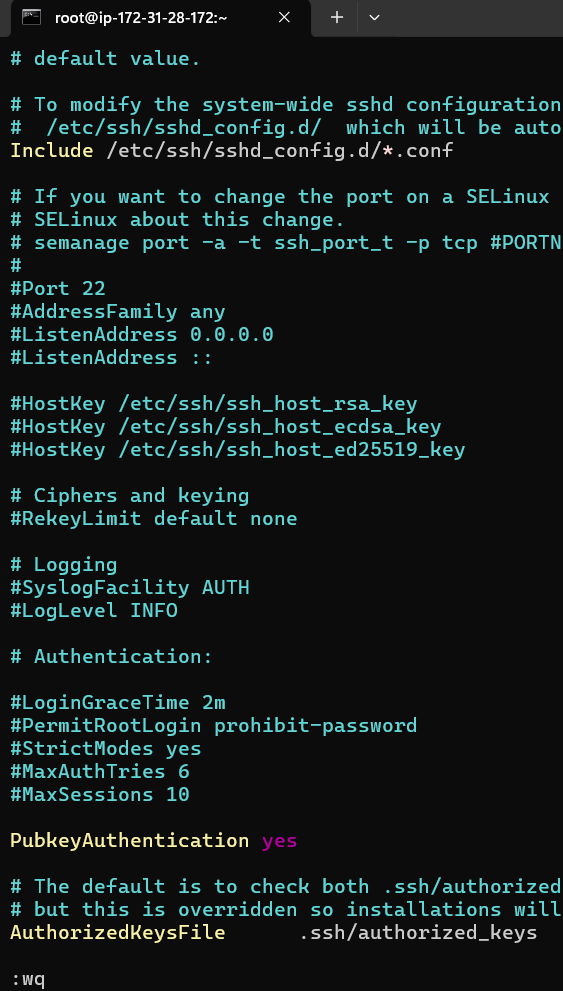
scroll down and we will see that pubkey auth is commented out by default so we are going to uncomment it. press i for writing mode and remove #
press esc then type :wq to write and quit
since we made a change in its configuration file, we need to restart it so the change will be taken into account with systemctl restart httpd
check its status: systemctl status httpd
Ok good it is running and taken into account our configuration change.
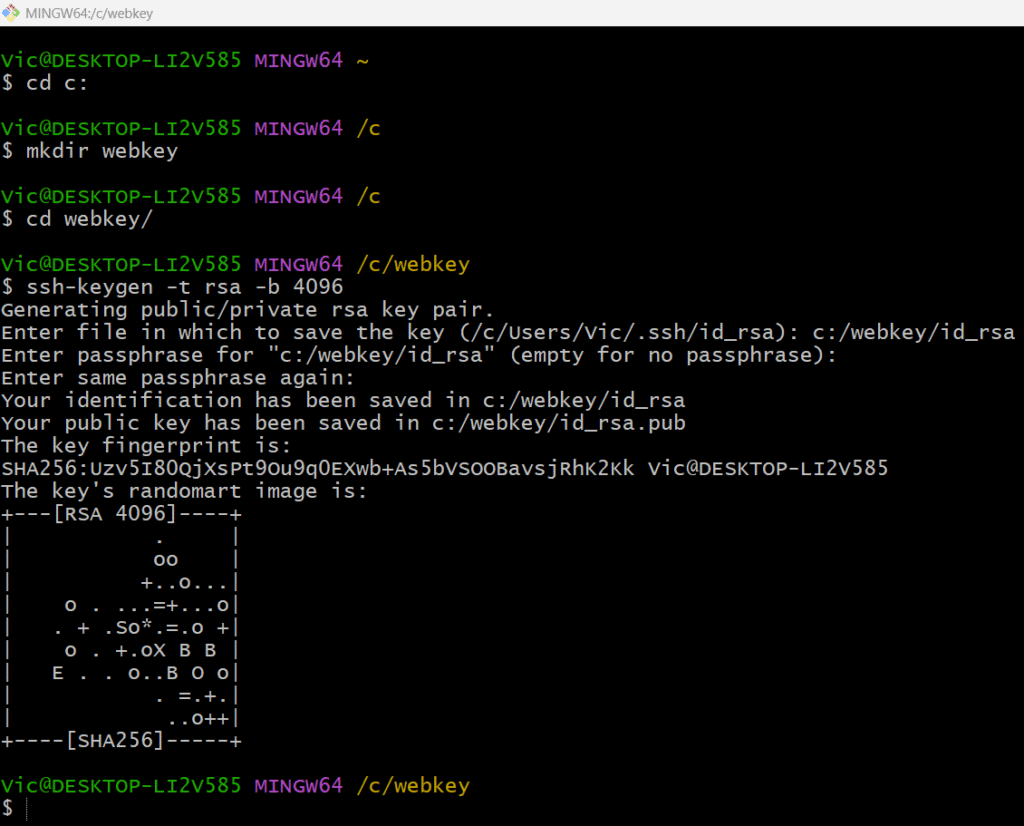
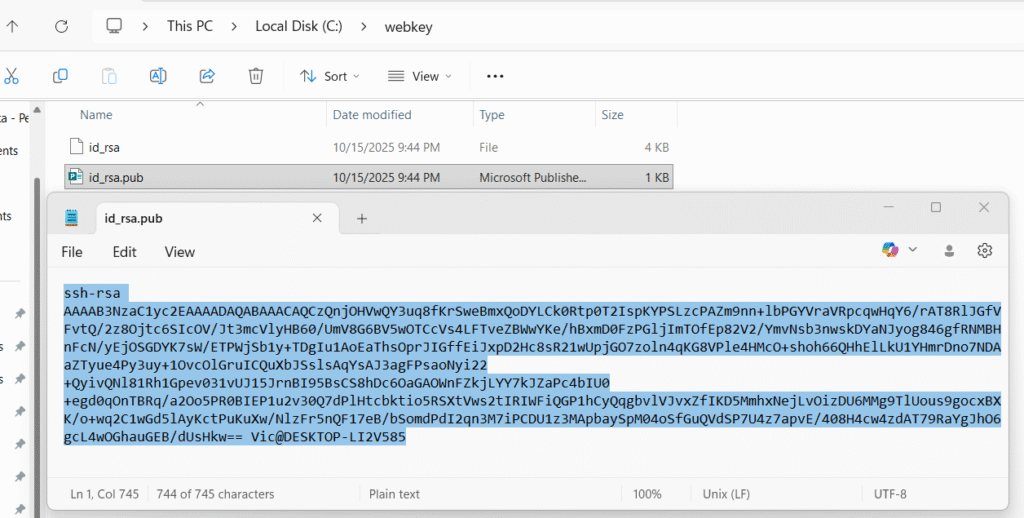
Next we will need to generate public/private key pair from our local repo which is windows
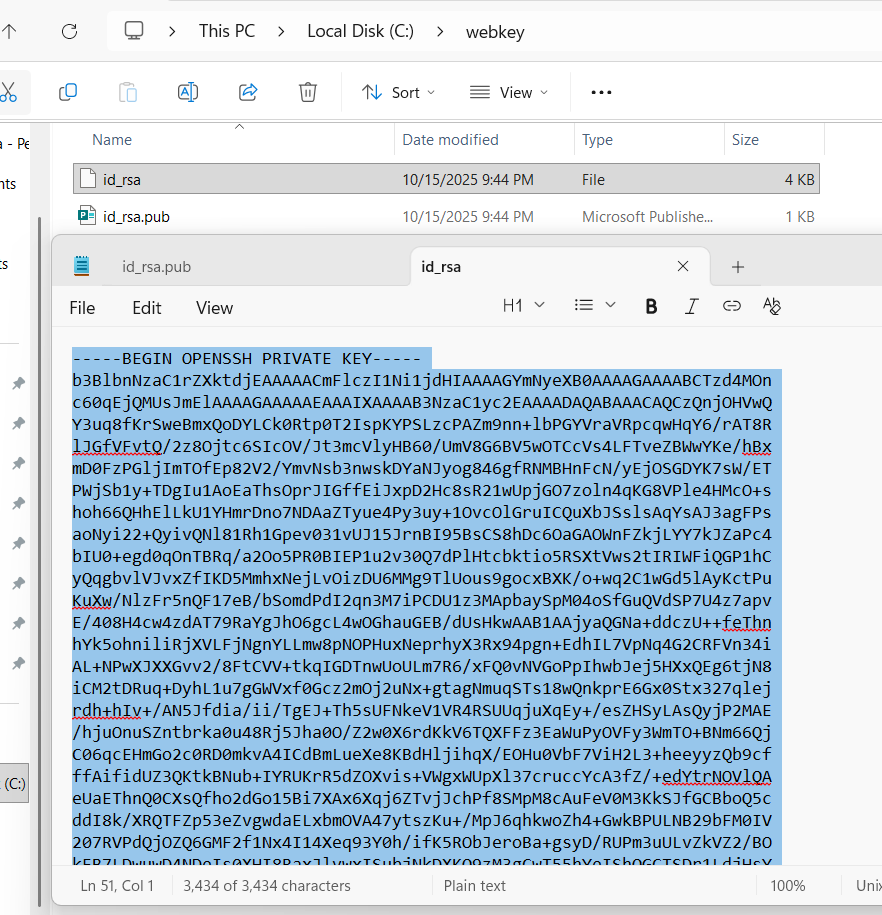
and save it at c:\webkey folder with ssh-keygen -t rsa -b 4096
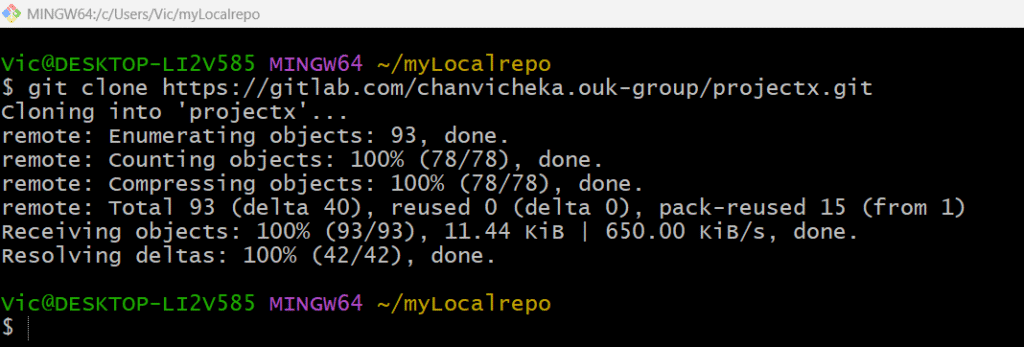
Next, getting my remote repo “projectX” to my local repo since I already have remote repo “projectX” at the GitLab so I will just clone it in my local directory
Next, copy our public key id_rsa.pub from our local repo id_rsa.pub and input it in our webserver’s public key aka “authorized_key”
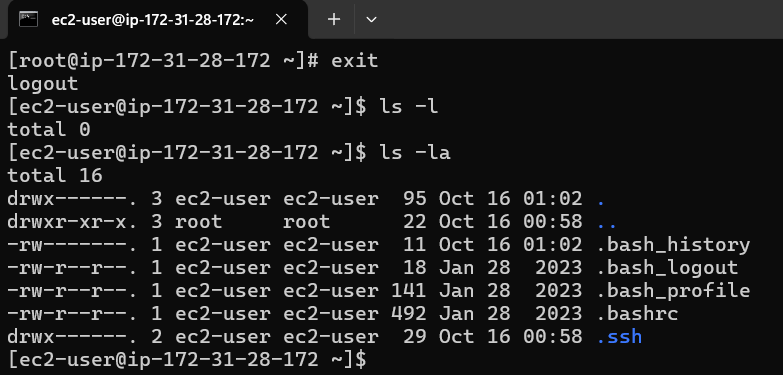
Logout from root and cd to the hidden folder .ssh
cd to the hidden .ssh and we will see authorized_keys file there
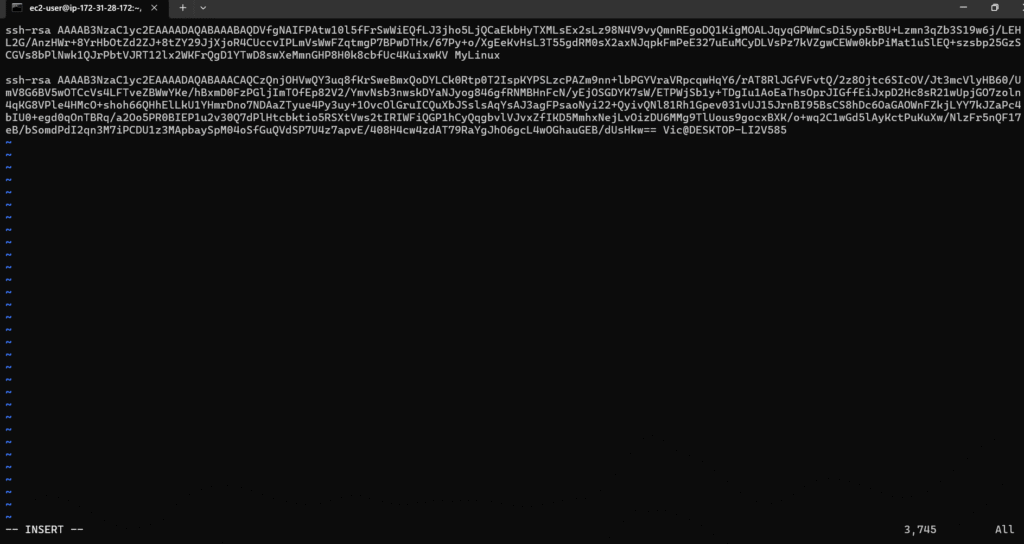
vi authozied_keys
press i for writing mode and then copy our public key from our windows local repo id_rsa.pub
and paste in this authorized_keys file and save it
press esc then :wq to write and quit vi
Good that concludes that we have configure public key in our designated webserver Apache.
Next we will configure private key in our GitLab.
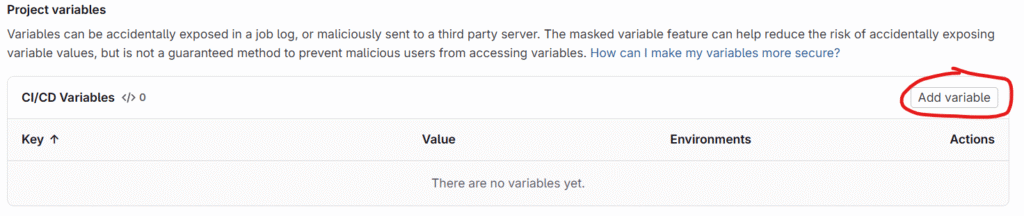
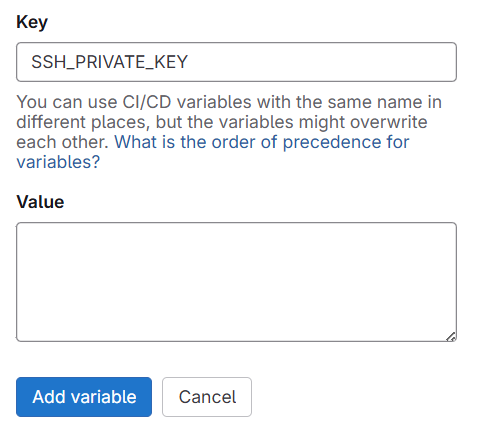
Project → Settings → CI/CD → Variables → Project variables and click on Add varaible
scroll down till you see below two value key/value pair
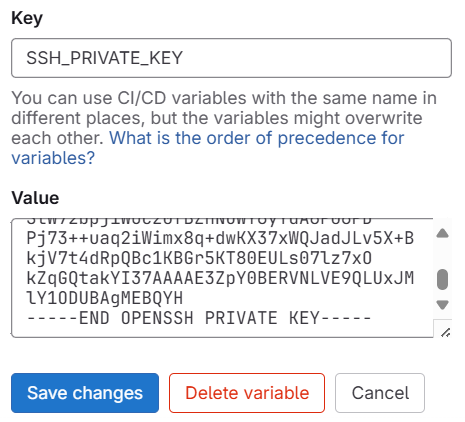
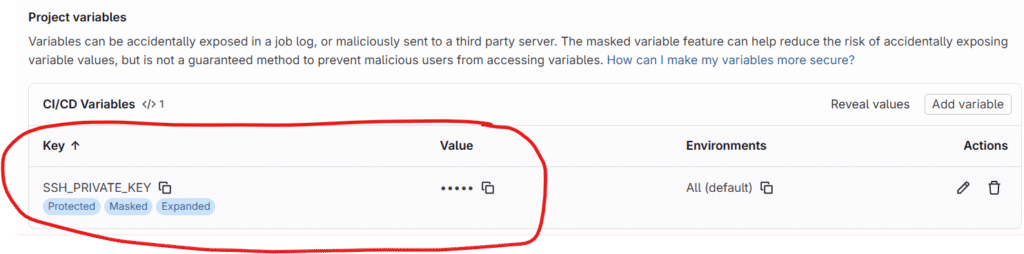
Give Key as SSH_PRIVATE_KEY and Value we will copy and paste the private key we generated from our local repo in windows PC
this concludes the handshake btw our GitLab’s CI/CD pipeline and AWS EC2 Linux Apache WebServer where CI/CD would use privatekey and the WebServer would use the matching public key.
Third, we will have to configure our .gitlab-ci.yml for set of instruction for ci/cd pipeline
image: node:latest
stages: - test - deploy
# ------------------------- # Test Stage # ------------------------- test-job: stage: test script: - npm install -g html-validator-cli - html-validator --file=index.html --verbose only: - main
First we tell gitlab that we want an image that have node js already installed as it has a dependency with html-validator-cli that we used in the test job on ubuntu runner.
2nd we only want two stage test and deploy
For test job, we will use ubuntu and install html-validator-cli and use it to valide our index.html for html syntax (note index.html I already created in the repo ProjectX)
For deploy job, we update our ubuntu and install openssh-client.
create .ssh at root home directory on Ubuntu
then write the privatekey value from our gitlab project variable SSH_PRIVATE_KEY to ~/.ssh/id_rsa on Ubuntu (~ mean home directory and in this case the home of the root user)
Finally securely copied index.html from Ubuntu over the network to our designated AWS ec2 cloud Apache Webserver at ec2-user@18.191.251.195 and put it in directory /var/www/html which is the main directory of our Apache webserver : authentication with ~/.ssh/id_rsa which is the private key value written from $SSH_PRIVATE_KEY variable.
only: - main means: “Run this job only when the pipeline is triggered from the main branch.”
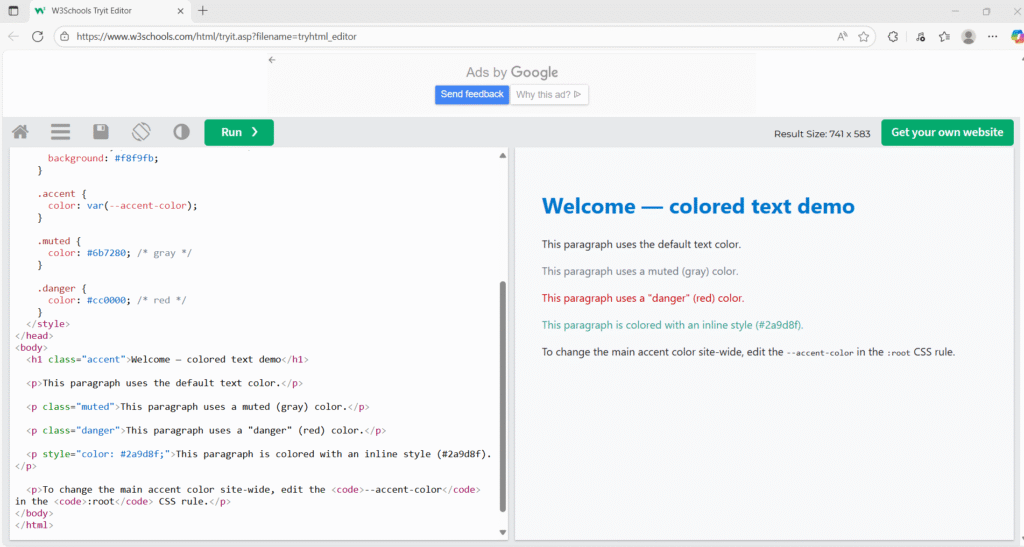
Our index.html from GitLab should look like this after GitLab CI/CD validate its html syntax and deploy it to the target webserver at AWS EC2.
<!doctype html>
<html lang="en">
<head>
  <meta charset="utf-8" />
  <meta name="viewport" content="width=device-width,initial-scale=1" />
  <title>Colored Text Example</title>
  <style>
    :root {
      --accent-color: #0077cc; /* change this to update the accent color site-wide */
    }

    body {
      font-family: system-ui, -apple-system, "Segoe UI", Roboto, "Helvetica Neue", Arial;
      line-height: 1.5;
      padding: 2rem;
      color: #222; /* default text color */
      background: #f8f9fb;
    }

    .accent {
      color: var(--accent-color);
    }

    .muted {
      color: #6b7280; /* gray */
    }

    .danger {
      color: #cc0000; /* red */
    }
  </style>
</head>
<body>
  <h1 class="accent">Welcome — colored text demo</h1>

  <p>This paragraph uses the default text color.</p>

  <p class="muted">This paragraph uses a muted (gray) color.</p>

  <p class="danger">This paragraph uses a "danger" (red) color.</p>

  <p style="color: #2a9d8f;">This paragraph is colored with an inline style (#2a9d8f).</p>

  <p>To change the main accent color site-wide, edit the <code>--accent-color</code> in the <code>:root</code> CSS rule.</p>
</body>
</html>
our index.html
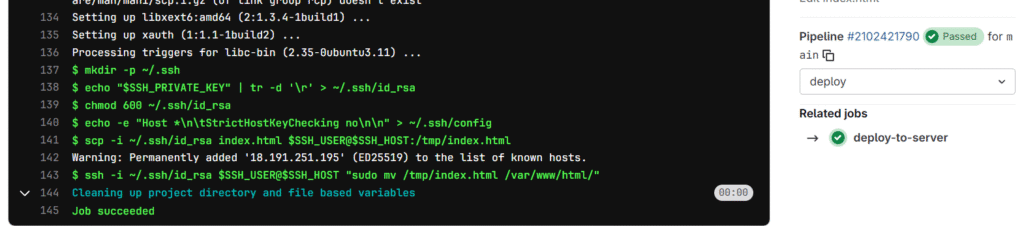
Now let check our CI/CD pipeline deploy stag’s logging.
It runs successfully and deployed index.html from remote repo in GitLab to the target AWS EC2 cloud Apache Web server at default directory /var/www/html
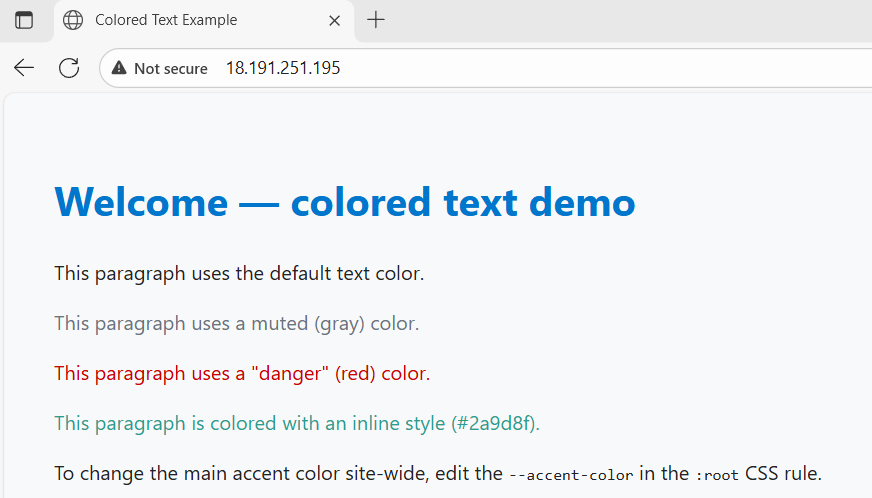
so if we go to the browser and put in our web server public ip, the web server should render our index.html. (note the Not Secure because we use http protocol instead of https as using https requires TLS configure which is not intended for this simplicity of this post)
Voila works as expected.
This conclude that our CI/CD deploy stage is able to deploy work to targeted AWS EC2 cloud Apache web server on Amazon Linux successfully.